Alert recipients
Alert recipients are the people and addresses that get emailed when an alert fires. Come here to add one, choose which severities they receive, or remove them.
Email delivery
Section titled “Email delivery”Coming soon
This part of Octiga isn't built yet. Check back once it ships.
The recipients table
Section titled “The recipients table”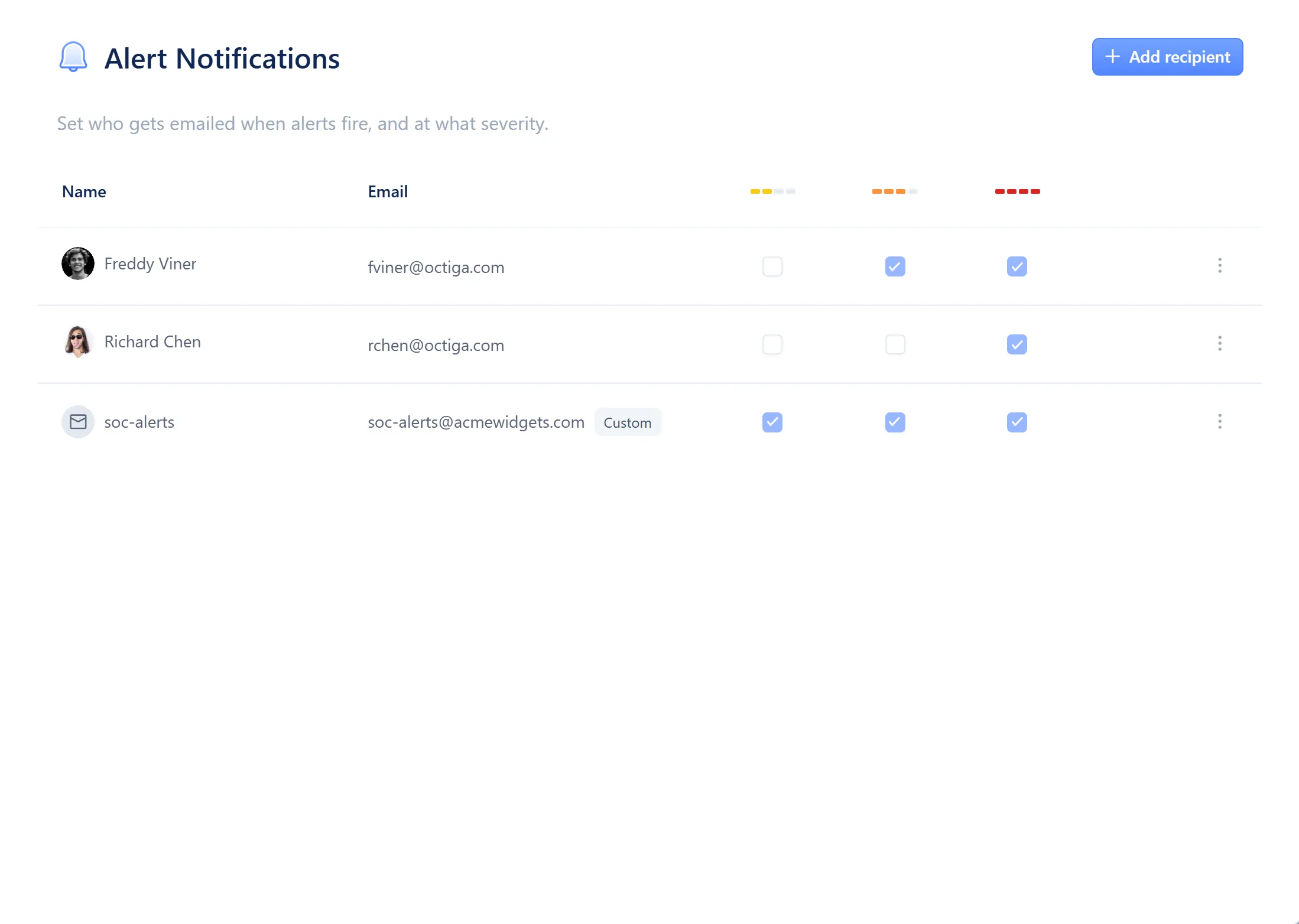
- Warning, Danger and Critical columns — each shows which recipients are subscribed to that severity
Each recipient shows which of the three severities (Warning, Danger and Critical) they are subscribed to. A recipient can be subscribed to any combination.
Who can be a recipient
Section titled “Who can be a recipient”- A team member picked from your MSP’s Microsoft 365 staff.
- Any other email address — a distribution list or shared mailbox is fine.
Add a recipient
Section titled “Add a recipient”-
Open Settings from the gear icon, then choose Alert Notifications.
-
Select Add recipient.
-
Select a team member, or type another email address.
-
Choose the severity levels this recipient should receive.
-
Select Save.
Change severities
Section titled “Change severities”-
Open Settings from the gear icon, then choose Alert Notifications.
-
Select the recipient’s row.
-
Change the severity levels, then select Save.
A recipient’s identity (who they are, or which email they resolve to) can’t be edited in place. To point the row at someone else, remove it and add a new one.
Remove a recipient
Section titled “Remove a recipient”-
Open Settings from the gear icon, then choose Alert Notifications.
-
Select the recipient’s row.
-
Select Delete recipient.
Automatic lockout
Section titled “Automatic lockout”Automatic lockout sends its own email, separately from the recipients above. It goes to every member of staff already subscribed to email alerts for your MSP, rather than to the recipients you manage here. See User remedies for what automatic lockout does.
Related
Section titled “Related”For how PSA tickets fit alongside email as an alert channel, see PSA integrations. For where alerts come from, see Alerts.