Event rules
An event rule changes how future Microsoft 365 events are graded, or hides them from view, based on where or who they came from. Come here to quieten a known-safe source, to stop a whole country or network operator from raising alerts, or to check what a rule you created is doing.
What a rule does
Section titled “What a rule does”A rule matches on one or more conditions and, when it matches, sets the target grade every matching event arrives at from then on:
- Info, Warning, Danger or Critical — future matching events arrive at that grade.
- None — the rule still matches and still counts as having hidden or re-graded something, but it doesn’t change the event’s grade. Use this to track how often a condition matches without altering anything.
Every alert shows which rules touched it
Section titled “Every alert shows which rules touched it”Open any event or alert and its detail shows which rules matched it when it arrived and, if one of them changed its grade, which rule is responsible. This is the quickest way to check whether a rule is doing what you expect.
The rules list
Section titled “The rules list”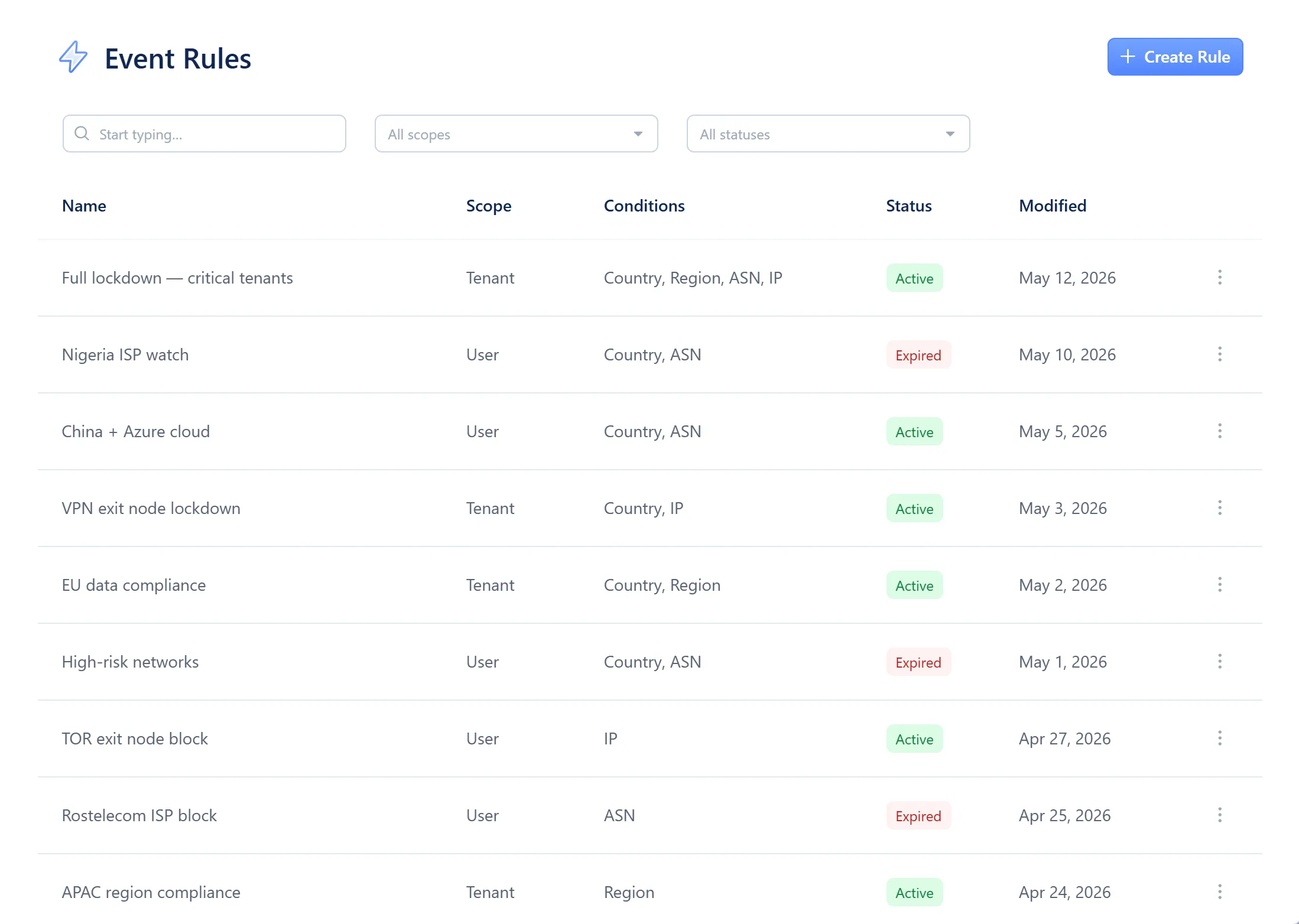
- Create Rule
- The rules table — Name, Scope, Conditions, Status, Modified
Status shows Active, Pending (its active period hasn’t started yet) or Expired (it has ended). Hover it to see the dates.
The rule dialog
Section titled “The rule dialog”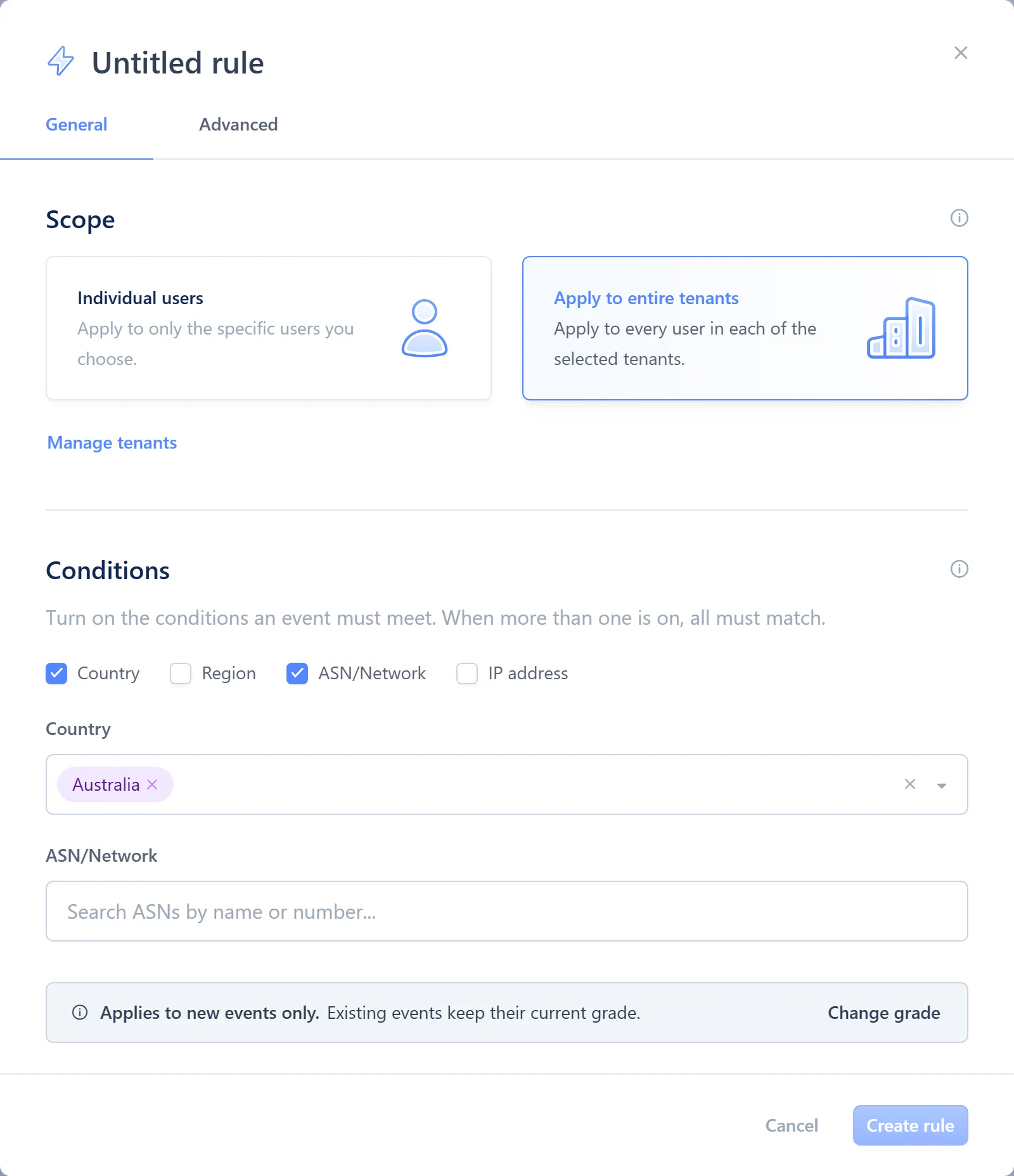
- Rule name
- Scope — Tenant or User
- Conditions — Country, Region, ASN / Network, IP address
Target grade and the active period are set on the dialog’s Advanced tab.
Conditions. A rule can combine any of:
- Country — the country the IP address resolves to.
- Region — a place you define: a point and a radius, so an office or a home can be approved precisely, even inside a country you haven’t approved.
- ASN / Network — the operator behind the IP, such as Microsoft, AWS or a mobile carrier.
- IP address — exact addresses or CIDR ranges.
A condition you leave off isn’t checked.
Scope. Choose Tenant or User before picking targets. Switching scope clears your selection, because it changes what “targets” means.
Active period. Either Always active, or a custom schedule of whole calendar days (in UTC) that the rule applies within. Both the start and end day are included.
Drawing a region
Section titled “Drawing a region”Select New region from the conditions area to open a map. Place the centre point, then drag its edge handle to set the radius, name it, and select Create region. The new region is added to this rule’s conditions and is available to every rule you create afterwards.
Create a rule from Settings
Section titled “Create a rule from Settings”-
Open Settings from the gear icon, then choose Event Rules.
-
Select Create Rule.
-
Name the rule, choose a scope, and set at least one condition.
-
Choose the target grade the rule should apply, or None to track matches only.
-
Set the active period, then select Create rule.
Create a rule from an event or alert
Section titled “Create a rule from an event or alert”-
Open the event or alert you want to build a rule from.
-
From the Country, Region, ASN or IP row, open its menu and select Country rule, Region rule, ASN rule or IP rule. For a rule starting from the actor, select Create rule in the sheet’s footer.
-
Check the condition already filled in, adjust the rest, then select Create and apply.
Creating a rule this way also re-grades the event or alert you started from, straight away. This is the one exception to rules affecting only future events.
Suppress a known-safe network operator
Section titled “Suppress a known-safe network operator”-
Find an event from the network operator you want to stop seeing, for example in the events table’s filter or from the alert list.
-
Open its ASN menu and select ASN rule.
-
Set the target grade to Info, so matching events stop reaching Needs attention, or to None if you’d rather track how often it matches.
-
Leave the active period as Always active, then select Create and apply.
Edit or delete a rule
Section titled “Edit or delete a rule”-
Open Settings from the gear icon, then choose Event Rules.
-
Select the rule’s row to edit it, or open its menu and select Delete.
Actions
Section titled “Actions”| Action | What it does | Minimum role |
|---|---|---|
| View rules | See the list of event rules and what each one matches | L1 Read |
| Create rule | Add a new rule | L2 Support |
| Edit rule | Change an existing rule’s conditions, target grade or active period | L2 Support |
| Delete rule | Remove a rule permanently | L2 Support |