Adding a baseline
When you want one setting somewhere rather than a whole scheme, add the baseline on its own, straight onto a tenant, a single user or an Azure group. The steps differ by the baseline’s scope (tenant, group or user), so start from the section that matches.
Adding an org-level baseline to a tenant
Section titled “Adding an org-level baseline to a tenant”-
Open the tenant’s Baselines screen, org-level tab.
-
Select + New Baseline to open the picker.
-
Search, or browse by category, to find the one you want.
-
Check what it needs before you pick it. The Requires input column flags a baseline that needs something filled in (a list of file types, an IP range, a set of blocked apps) before it has any effect, and the Service plans column names the Microsoft licence behind it.
-
Select it and confirm.
It’s added straight away, using its own default values, with automatic remediation off.
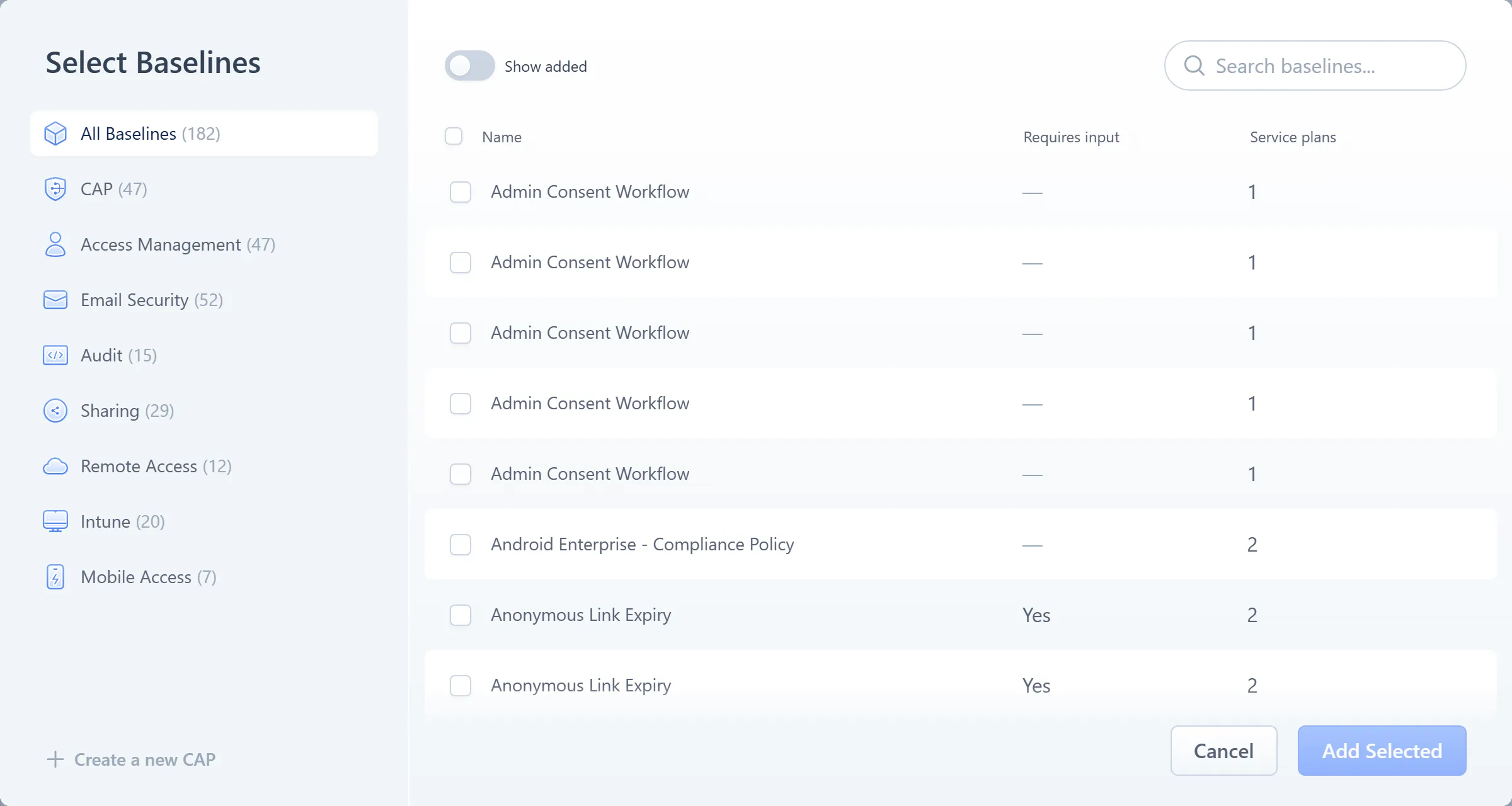
- Search
- Category rail
- Requires input column
- Service plans column
Adding a baseline to one user
Section titled “Adding a baseline to one user”-
Open the tenant’s Baselines screen, user-level tab (the roster).
-
Select the user to open their detail panel.
-
Select + Baseline in the footer, or choose Add baselines from the user’s row kebab menu in the roster.
-
Pick one or more baselines.
Anything the user already has (from a group, from their own Managed scheme, or as a Direct value) shows as added and can’t be picked again.
-
Confirm.
Each one lands as a Direct value straight away, using its own default.
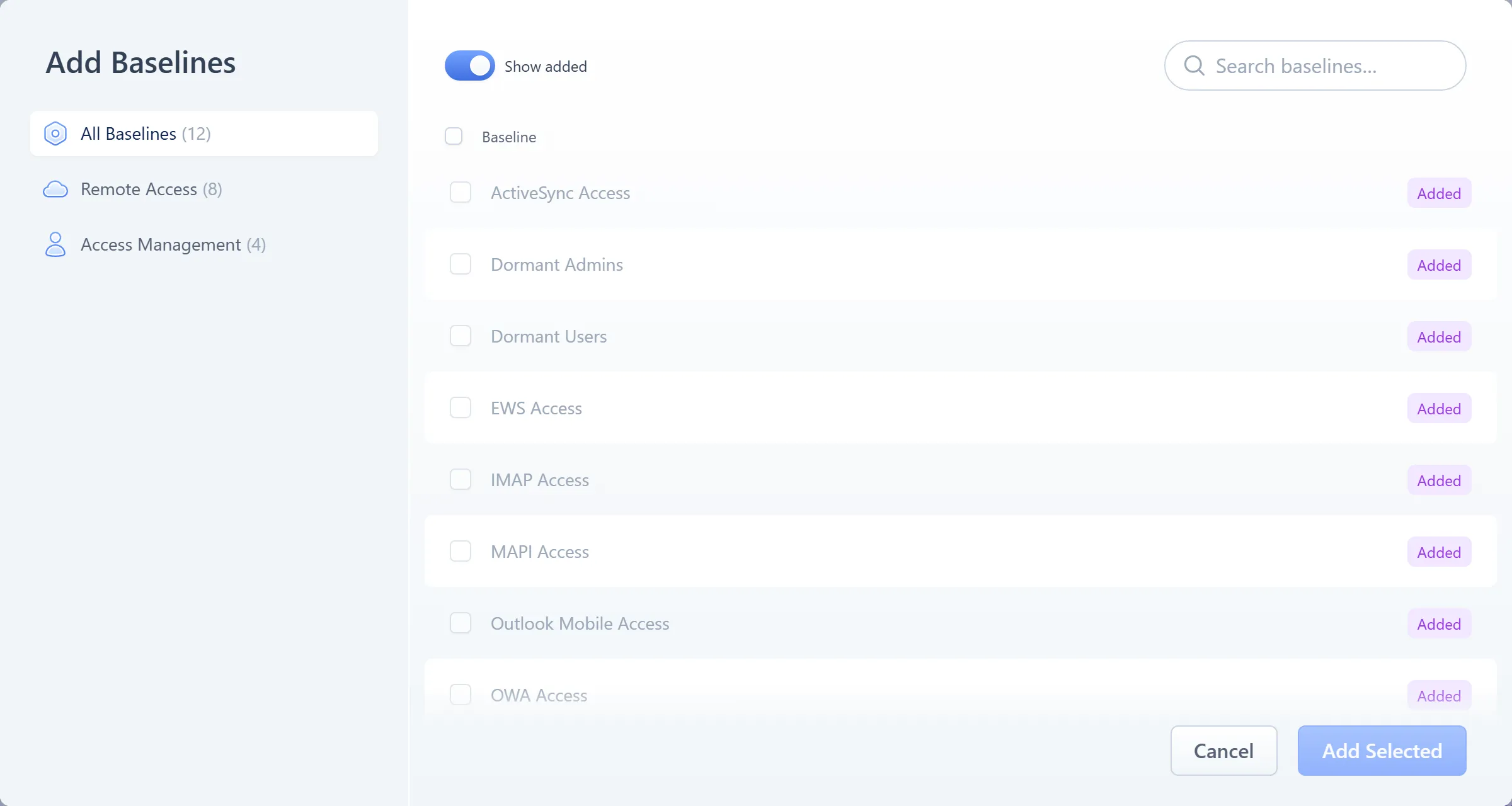
- Heading — “Add Baselines”
- Category rail
- Picker list, with already-applied rows shown as Added
A Direct value always wins for this user over anything their Azure groups or their own Managed scheme would supply (see Groups and priority). What the user had before is kept as provenance, but Octiga now enforces the Direct value. Direct values also feed the roster’s four states (Group only, Group and Direct, Direct only, or Unmanaged), which Groups and priority explains.
To take Direct control of a baseline a user already gets from a group, you don’t need the picker: choose Set direct value from the roster’s row kebab and confirm. It becomes a Direct value straight away, keeping its current setting until you change it.
Adding a baseline to a group
Section titled “Adding a baseline to a group”-
Open the Groups page for the tenant (from the user-level tab’s Manage Groups link, or a starred group).
-
Select the group to open its detail panel, which opens on the Baselines tab.
-
Select + Baseline in the footer, or choose Add baselines from the header kebab.
-
Pick one or more baselines.
Anything the group’s own scheme already supplies shows as added, so the two never clash.
-
Confirm.
Each one lands as a group-direct baseline straight away, using its own default.
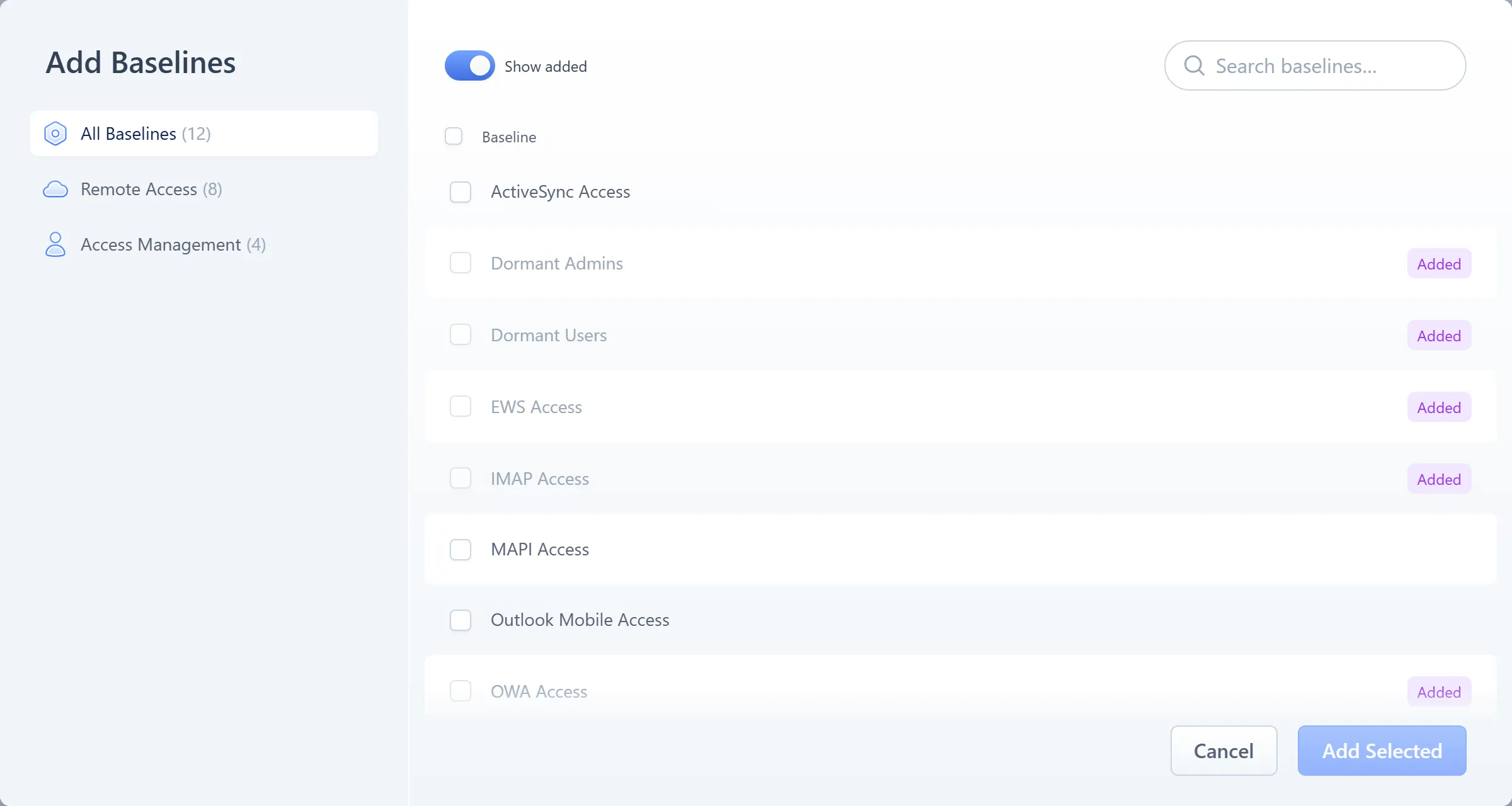
- Heading — “Add Baselines”
- Picker list — rows the group already has (from its scheme or added by hand) show Added and can’t be picked again
A group-direct baseline sits alongside anything the group’s Managed scheme supplies: the group’s effective set is the scheme’s baselines plus its own. Unlike a Direct value on a user, it can’t take precedence over a baseline the group’s scheme already carries. Groups and priority explains how it reaches the group’s members.
Setting the baseline’s values
Section titled “Setting the baseline’s values”However you added it, editing a baseline opens a field-by-field form: in a dialog for an org-level baseline, or on the detail panel for a user’s or a group’s. Fields are toggles for on/off settings, dropdowns for a fixed set of choices, number fields for thresholds such as a day count, and, for a few settings, a list of values you add and remove one at a time.
If a field is already Deviated, its label carries a red Deviated tag. Select it to open Currently set to, which shows the value Microsoft 365 holds now next to the one you’re setting. You can then edit the field to match what’s there, or keep your own value and remediate once you’ve saved. Both are reasonable choices.
Turning on automatic remediation
Section titled “Turning on automatic remediation”Every baseline has its own automatic-remediation switch next to its value: a column on the row for an org-level baseline, or a toggle in the same form for a user’s or a group’s. With it on, Octiga fixes that baseline by itself the next time it finds it Deviated, with no operator involved. The switch starts off for a baseline added from the org-level tab; a user-level or group-direct baseline starts at its own default, which for most is on.
Automatic remediation needs three switches on: your MSP’s setting, the tenant’s setting, and this one. Remediation covers how they combine, and how to fix a deviation manually however they’re set.
Removing a baseline
Section titled “Removing a baseline”How you remove a baseline depends on where you added it:
| Where | How |
|---|---|
| Org-level, hand-added | Row kebab → Remove baseline → a small confirm anchored to the kebab. A baseline supplied by a scheme has no Remove here — go to the scheme, or detach it, instead. |
| User-level, Direct | Row kebab → Reset to inherited → confirm. Falls back to whatever the user’s Managed scheme or highest-priority group would otherwise supply, or to not applied if there’s nothing beneath it. |
| Group-direct | Row kebab → Remove. Only group-direct rows carry a kebab here — a scheme-supplied row has none; remove it from the scheme, or detach the scheme, instead. |
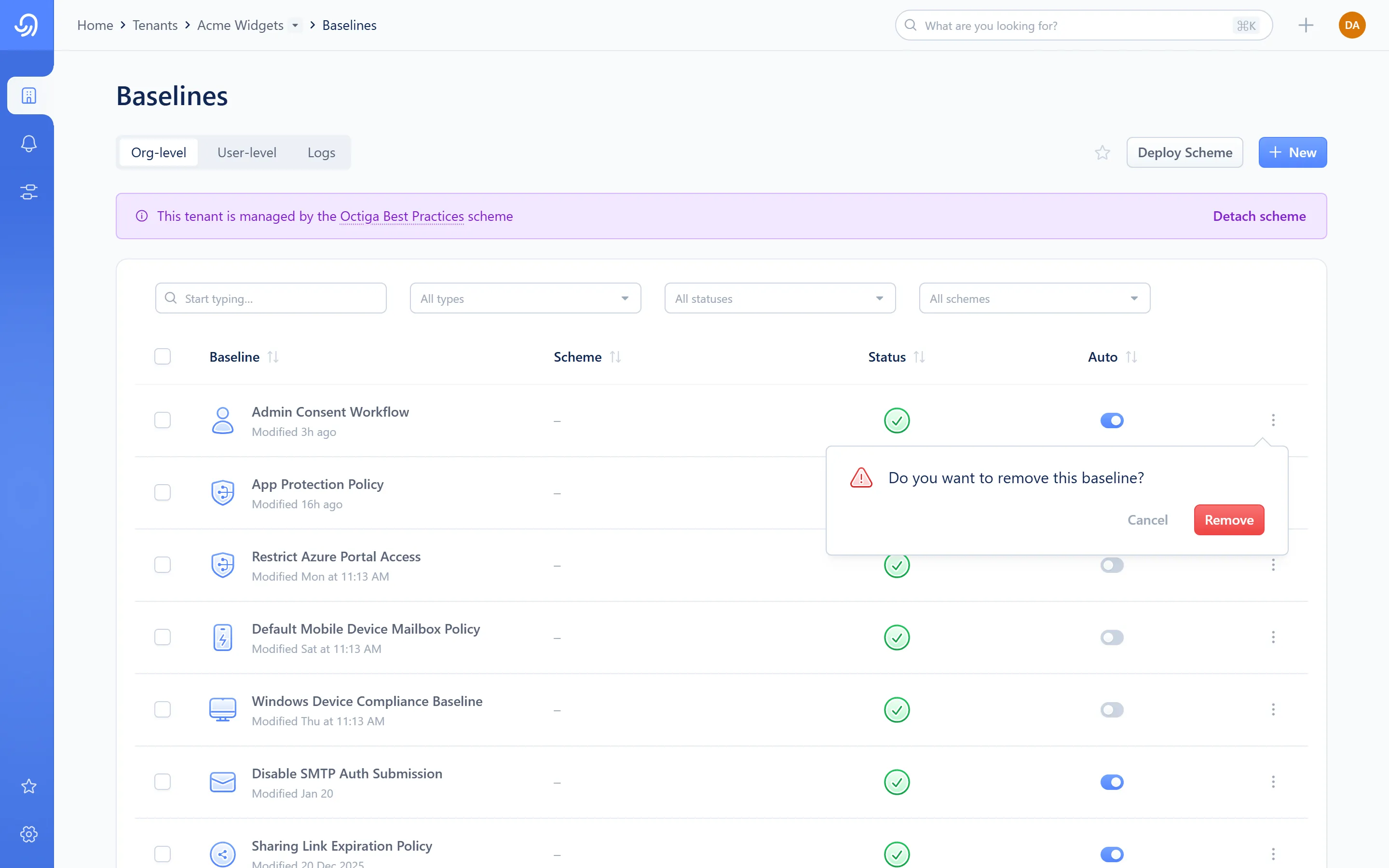
- Row kebab — opens Remove baseline
- Confirm popover — “Do you want to remove this baseline?”
Removing a baseline closes any open deviation it had, because Octiga stops checking it. The Microsoft 365 setting itself hasn’t changed; Octiga no longer expects any particular value there. See Deviations.
Check it worked
Section titled “Check it worked”The row settles to Passing or Deviated at Octiga’s next evaluation, not the instant you save. A target that isn’t licensed for the baseline shows Excluded instead. Deviations explains each of the three and how current the picture is.
If it didn’t
Section titled “If it didn’t”- A baseline you added never shows up as applied — see Troubleshooting (“A baseline never appeared after a deploy”) and Licence requirements. A missing licence is the most common reason, and it doesn’t raise an error.
- A user or group shows Excluded instead of Passing or Deviated — see Troubleshooting (“A user shows Excluded”).