Alerts
Alerts lists everything Octiga has raised across every tenant you manage, whatever caused it. Come here for a single, fleet-wide view rather than working tenant by tenant.
Where an alert comes from
Section titled “Where an alert comes from”An alert is raised from one of three sources:
- An event — a Microsoft 365 audit event graded warning or worse (see Events).
- A deviation — a baseline that’s stopped passing. Deviation alerts are always warning; deviations carry no severity of their own.
- A notification — an operational message from Octiga itself.
The Alerts screen
Section titled “The Alerts screen”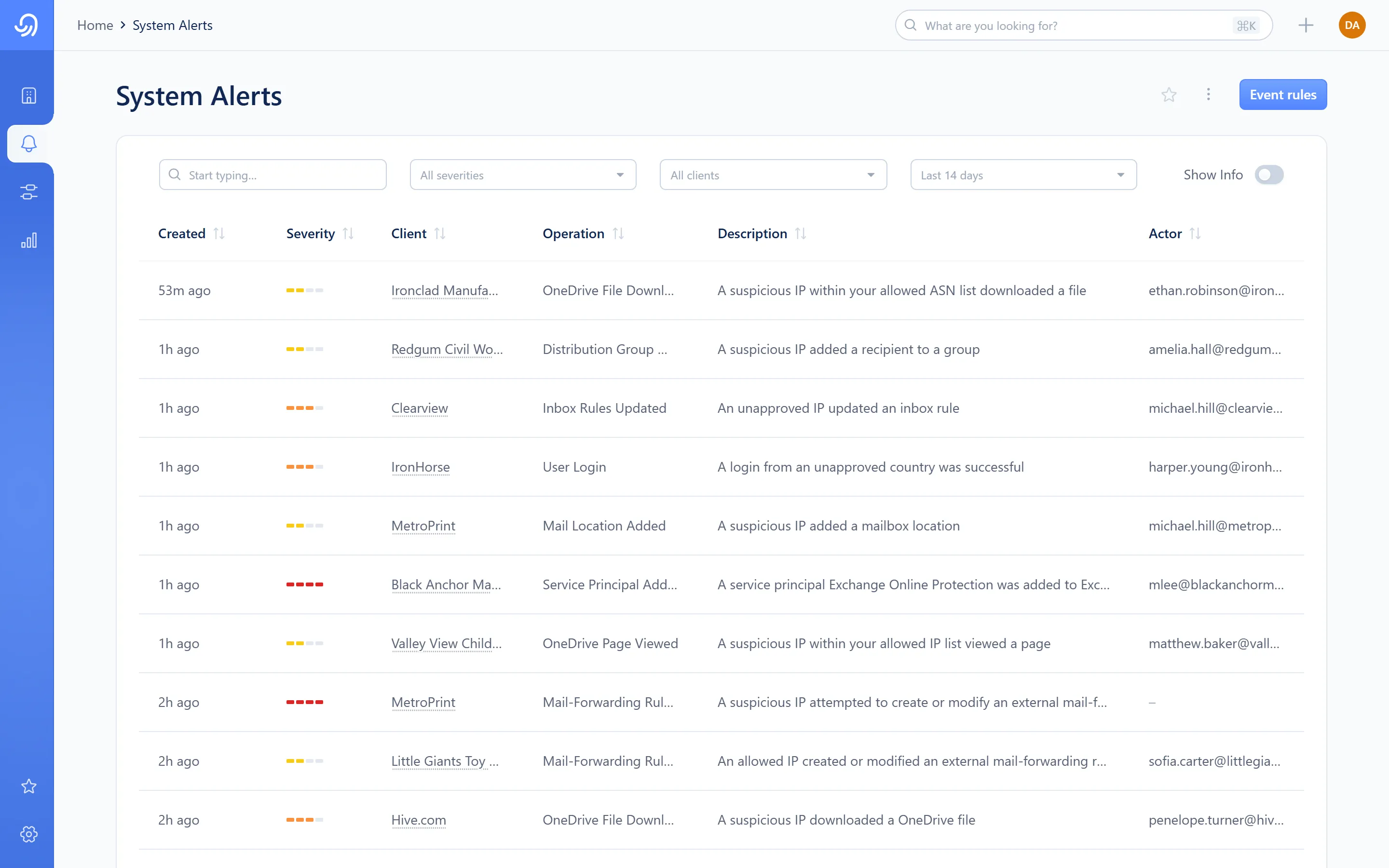
- Search
- Severity
- Client
- Date range
- Show Info toggle
- The alerts table
Columns: Created, Severity, Client, Operation, Description, Actor, Affected user. The list loads more rows as you scroll.
Filters — search, a severity dropdown (All severities, Warning, Danger, Critical), a client (tenant) dropdown built from whichever tenants appear in the current results, and a date range (7, 14, 30 or 90 days, or all time).
Show Info is off by default. Switch it on to bring info-grade events (those that didn’t reach warning on arrival) into scope. With it off there’s nothing to show, so the Info option doesn’t appear in the severity dropdown either.
The alert side sheet
Section titled “The alert side sheet”Selecting a row opens the alert in a side sheet.
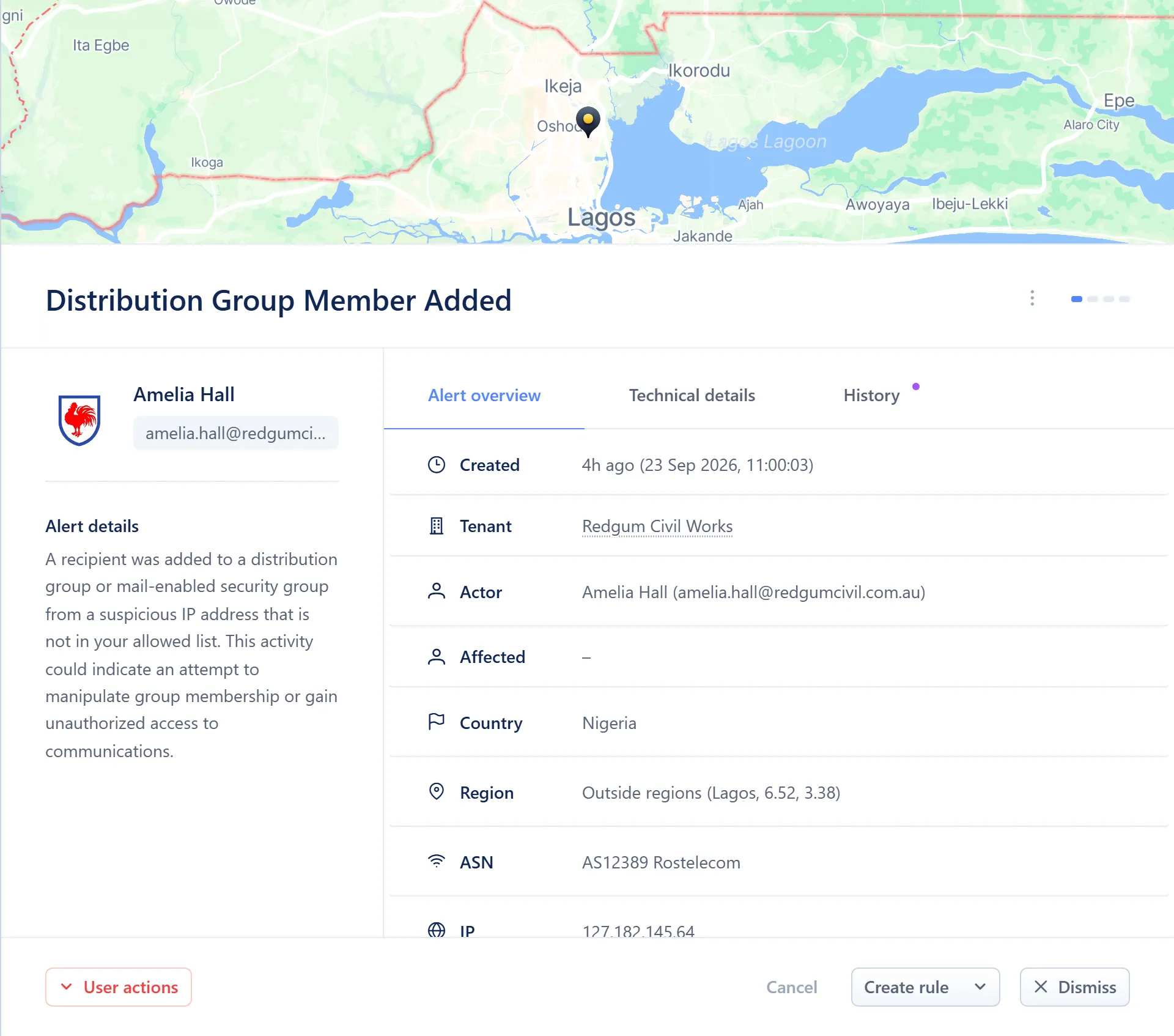
- Location map (event-sourced alerts only)
- Actor, Country, Region, ASN, IP and Sign-in rows
- Overview · Technical details · History tabs
The map, the location rows and the rule-creation options appear only for an alert raised from an event. A deviation or notification alert shows the overview, Technical details and History.
Where alerts go
Section titled “Where alerts go”| Channel | What it carries |
|---|---|
| In-app | Every alert, shown here |
| Sent to whoever is subscribed at that severity — see Alert recipients | |
| PSA ticket | Raised in a connected PSA if one is mapped for that severity and client — see PSA integrations |
| Live browser push | A real-time notification for anyone with Octiga open |
Creating an event rule from an alert
Section titled “Creating an event rule from an alert”From an event-sourced alert’s detail sheet you can create a rule against one of four conditions:
- Country
- Region — a place you define on a map, as a point and a radius
- ASN / network operator
- IP address — an exact address or a CIDR range
Drawing a region opens a map dialog where you place a point and set a radius before naming it. See Event rules for the rest of the rule dialog and what a rule does.
Actions
Section titled “Actions”| Action | What it does | Minimum role |
|---|---|---|
| Dismiss | Removes the alert from view (or dims it in place under Show Info) | L2 Support |
| Create rule | Opens the rule dialog, pre-filled from this alert (event-sourced alerts only) | L2 Support |
| Block user | Disables the actor’s account and ends its sessions | L1 Read/Write |
| Reset password | Issues the actor a new password | L1 Read/Write |
Block user and Reset password aren’t offered for an actor that isn’t a real person, or where the action doesn’t apply.