Mail flow
Mail flow is where you review a tenant’s mailbox-level security risk and act on it: suspicious inbox rules, forwarding out of the organisation, legacy protocols still allowed in, and the transport rules that apply to every mailbox at once. Come here after an alert points at a mailbox, or as part of a regular review.
What this screen governs
Section titled “What this screen governs”Mail flow covers four things for a tenant:
- Inbox rules — a user’s own Outlook rules, such as ones that forward, redirect, move, delete or categorise mail automatically.
- Mailbox forwarding — a mailbox set to forward mail on, whether to another mailbox in the same organisation or out to an external address.
- Transport rules — rules Exchange applies to the whole organisation, in a fixed priority order, regardless of whose mailbox the mail passes through.
- Remote access protocols — which legacy and modern mail protocols (IMAP, POP3, SMTP authentication, ActiveSync, and others) are allowed on each mailbox.
Mailboxes tab
Section titled “Mailboxes tab”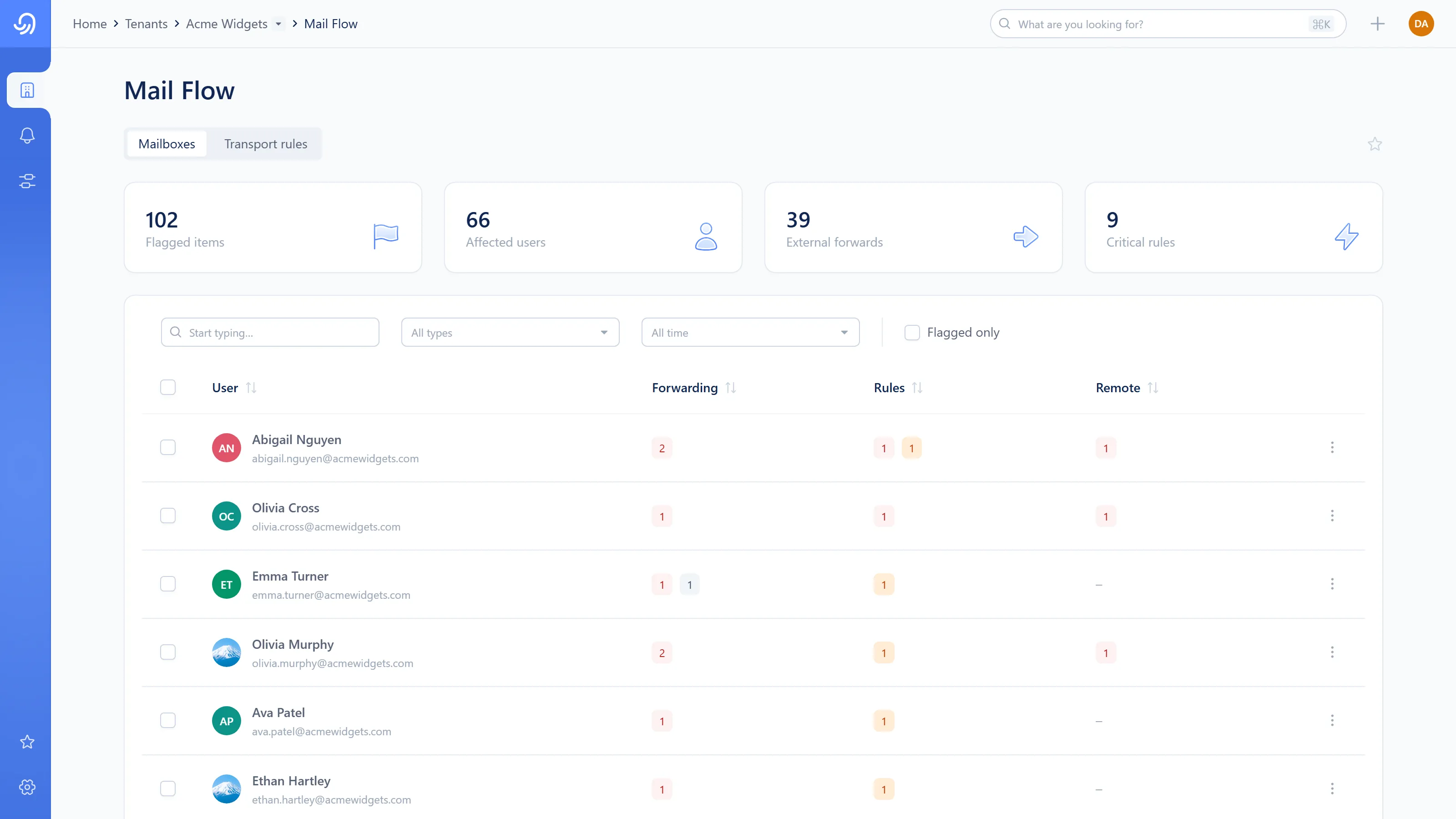
- Flagged — every flagged finding across rules and forwards
- Users affected — mailboxes with at least one flagged finding
- External forwards — flagged forwards leaving the organisation
- Critical rules — flagged inbox rules at the critical tier
- Flagged-only filter (off by default)
- Forwarding, Rules and Remote columns — one tag per severity bucket present
The table lists every mailbox by default, one row each. Select Flagged only to narrow it to mailboxes with at least one flagged finding. The tiles always count flagged findings, whichever filter state you’re in.
Select a row to open that mailbox’s findings in a side sheet. Selecting several mailboxes reveals a batch bar with Un-flag all, which clears every flagged finding across inbox rules and forwards for the users you selected.
The mailbox side sheet
Section titled “The mailbox side sheet”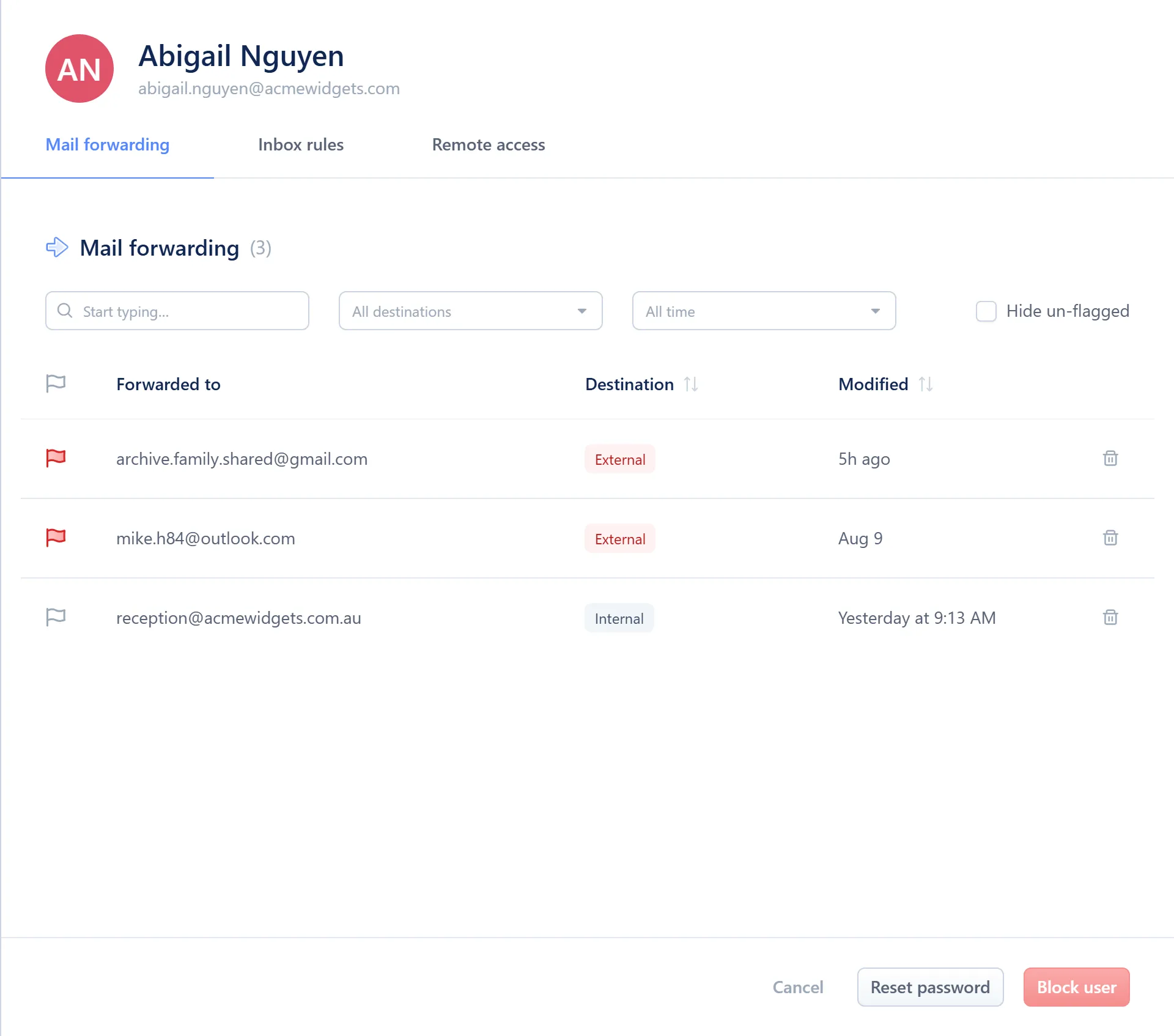
- User identity
- Tabs — Mail forwarding, Inbox rules, Remote access
- Filter row — search, a type or destination filter, a time window
- Findings — a table on Mail forwarding, cards on Inbox rules
- Footer — Cancel and Reset password
- Mail forwarding lists the mailbox’s forwards, tagged Internal or External, with when each was last modified. Filter by destination or by age.
- Inbox rules lists the user’s own rules as cards, each showing what it does, its severity, and a live enable switch. Filter by type or by severity.
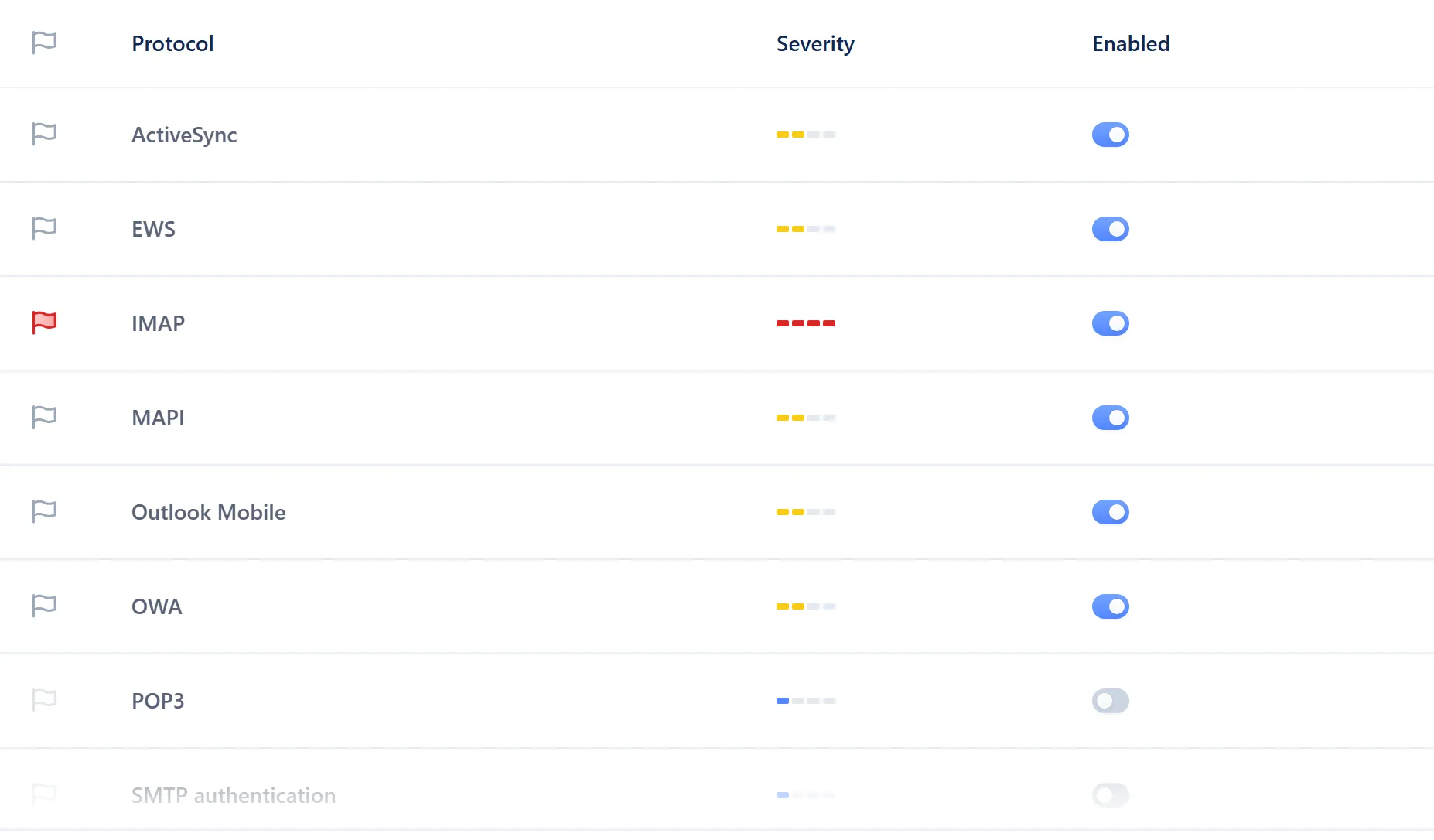
- Remote access always lists all eight protocols, each shown as enabled or disabled, with a severity that reflects which protocol it is and whether it’s on. There’s no filter here; eight rows are short enough to read directly.
Each finding has a flag star you can toggle either way: flag something the classifier judged benign, or un-flag one that doesn’t matter for this tenant. Mail forwarding and Inbox rules both show un-flagged findings by default; select Hide un-flagged in the filter row to see only what’s flagged.
Reset password in the sheet’s footer opens the dialog described in User remedies.
Transport rules tab
Section titled “Transport rules tab”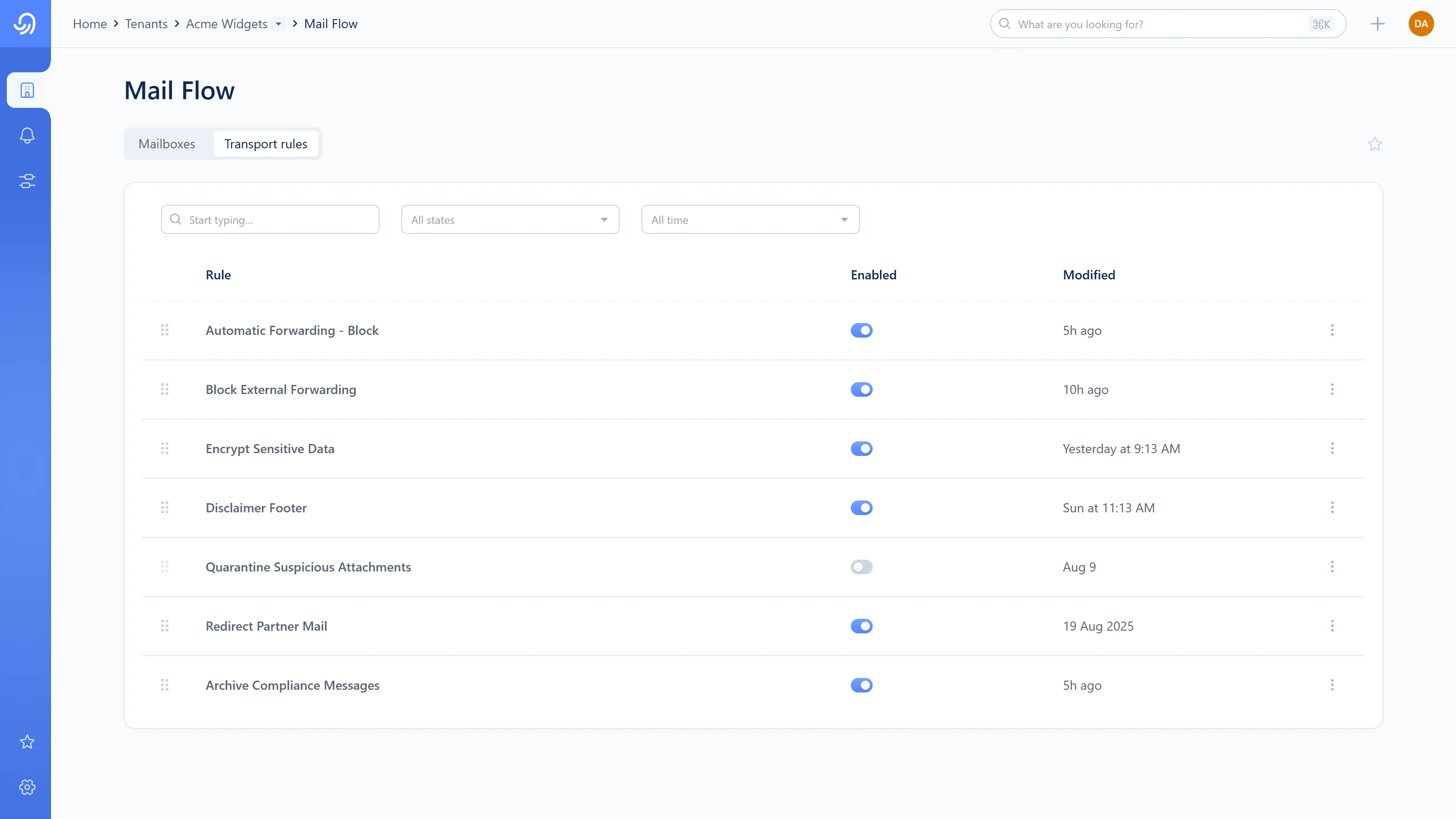
- Drag handle — reorders priority
- Rule name
- Enable switch
- Kebab menu — View Json, Delete rule
Rules run in the order shown, top to bottom, for every mailbox in the tenant, with no per-mailbox exceptions. Drag a row to change its priority. A disabled rule can’t be dragged, and reordering isn’t available while a filter is active, because a filtered view no longer matches the table’s real row order.
Actions
Section titled “Actions”| Action | What it does | Minimum role |
|---|---|---|
| Flag or un-flag a finding | Marks a finding as worth attention, or clears one that isn’t | L1 Read/Write |
| Un-flag all | Clears every flagged finding for the mailboxes you selected | L1 Read/Write |
| Delete a forward | Removes the forward from Exchange | L1 Read/Write |
| Enable or disable an inbox rule | Turns the rule on or off in Exchange | L1 Read/Write |
| Enable or disable a remote-access protocol | Turns that protocol on or off for the mailbox | L1 Read/Write |
| Reorder a transport rule | Changes its priority against every other rule | L1 Read/Write |
| Delete a transport rule | Removes the rule from Exchange | L1 Read/Write |
| Reset password | Opens the dialog documented on User remedies | L1 Read/Write |
Flag or un-flag a mailbox finding
Section titled “Flag or un-flag a mailbox finding”-
Open the mailbox from the Mailboxes tab, or select its Forwarding, Rules or Remote tag to land on the matching tab directly.
-
Find the finding in the list.
-
Select its flag star to flag or un-flag it.
Remove a suspicious forwarding rule
Section titled “Remove a suspicious forwarding rule”-
Open the mailbox and go to Mail forwarding.
-
Find the forward.
-
Select the delete icon.
-
Confirm. The forward is removed from Exchange immediately.
Disable an inbox rule
Section titled “Disable an inbox rule”-
Open the mailbox and go to Inbox rules.
-
Find the rule’s card.
-
Turn off its enable switch.
A disabled rule stops counting as a flagged finding even if it’s still flagged: it can’t act on mail, so it’s no longer a live risk.
Reorder a transport rule
Section titled “Reorder a transport rule”-
Open Transport rules.
-
Clear any active filter, as reordering isn’t available while one is applied.
-
Drag the rule’s handle to its new position.
Disable a legacy protocol on a mailbox
Section titled “Disable a legacy protocol on a mailbox”-
Open the mailbox and go to Remote access.
-
Find the protocol. IMAP, POP3 and SMTP authentication are the ones most often worth turning off.
-
Turn off its enable switch.
A protocol Octiga doesn’t control at the mailbox level (SMTP authentication is sometimes set organisation-wide instead) shows as controlled by policy rather than as a switch you can flip here.