Deploying a scheme
Deploy a scheme to apply its baselines to a tenant, one or more Azure groups, or one or more users. Every Deploy Scheme button and menu item in Octiga opens the same wizard, so these steps apply wherever you start.
-
Select the scheme.
Pick the scheme you want to deploy. If you opened the wizard from a scheme’s own page, this step is already filled in and you land on Mode instead.
-
Choose the mode.
Choose Apply as managed or Copy and detach. Apply as managed (Managed) takes every baseline in the scheme and keeps tracking it; Copy and detach (Direct) copies a subset once, as an independent snapshot. Schemes explains the difference.
-
Choose the target.
Deploy onto the tenant itself to cover everyone in it, or onto Azure groups or users to cover only those groups’ members or those users.
-
Choose baselines (Copy and detach only). Every baseline in the scheme starts checked. Uncheck any you don’t want in this copy. This step doesn’t appear for Apply as managed, because a Managed deploy always takes the whole scheme.
-
Confirm.
Review the summary, then deploy.
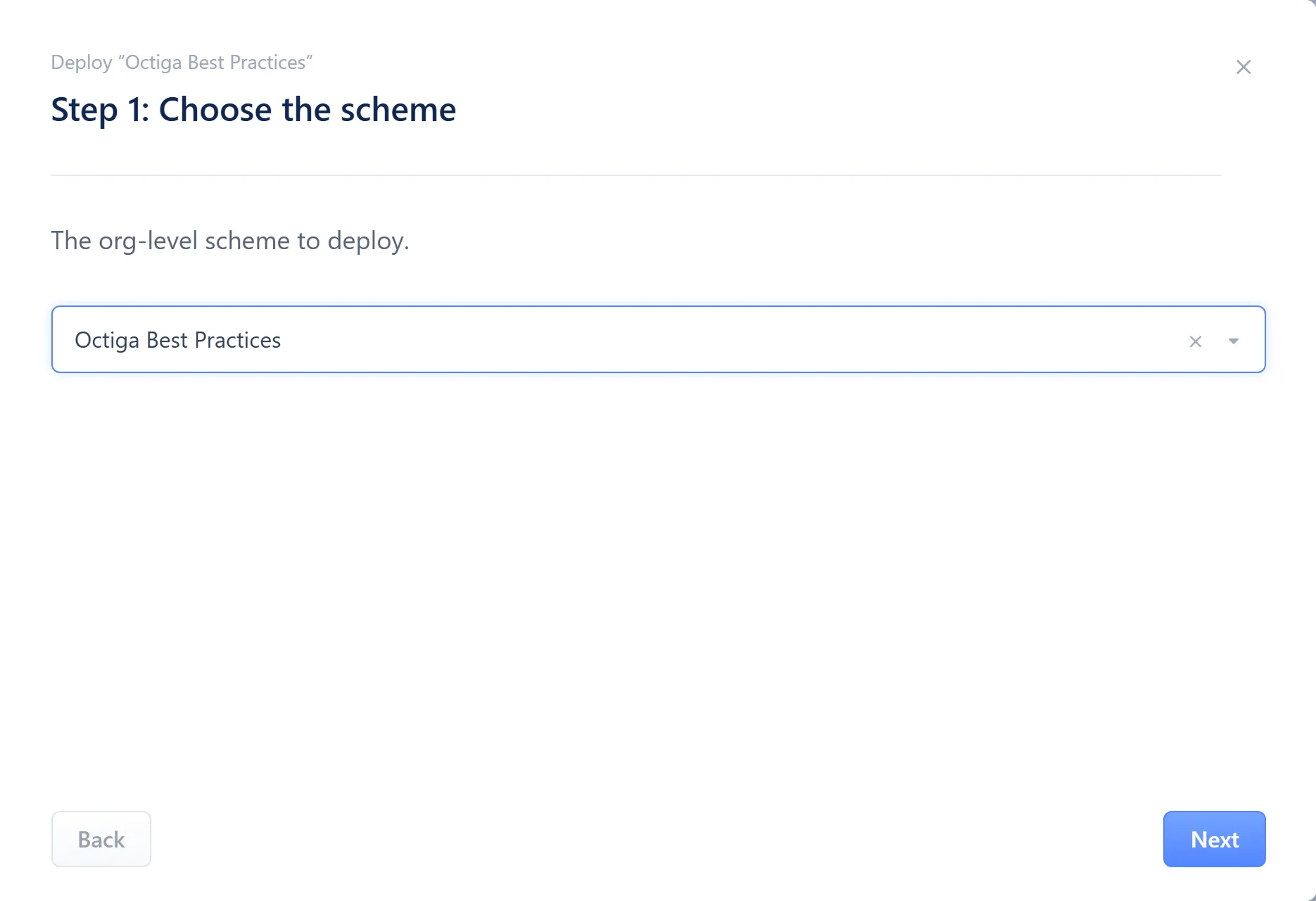
- Scheme select
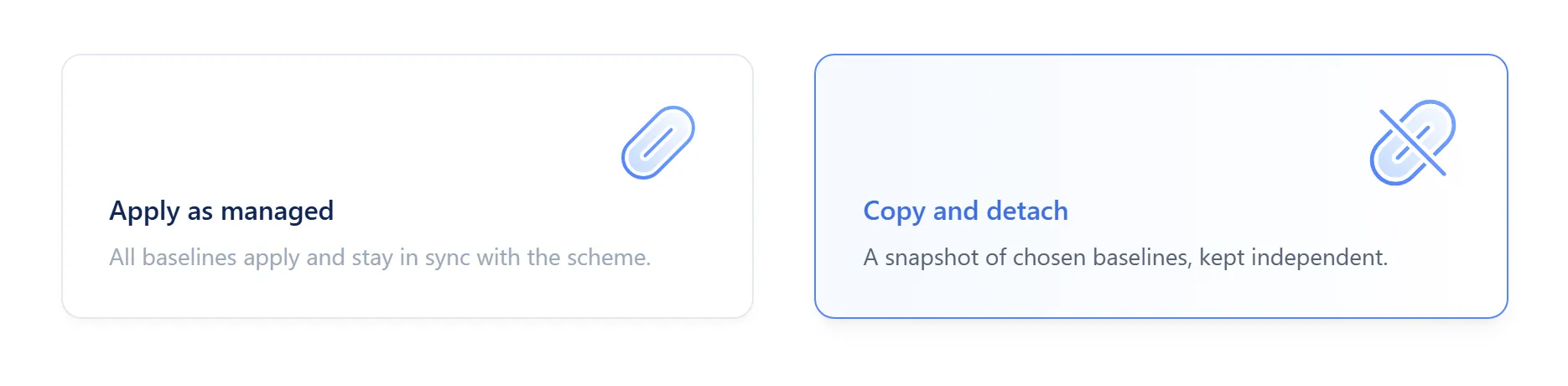
- Apply as managed
- Copy and detach
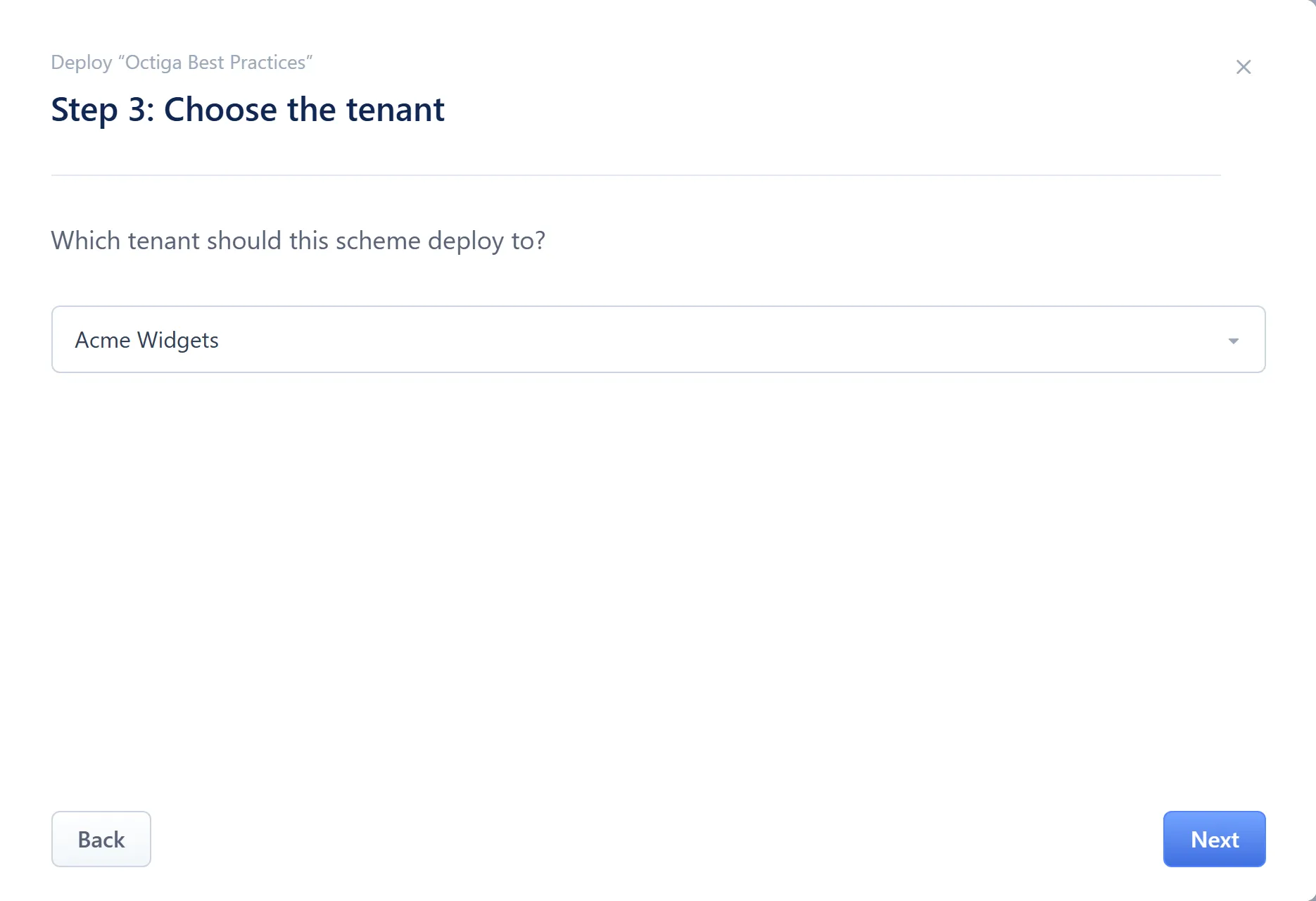
- Tenant, or deployment method and targets
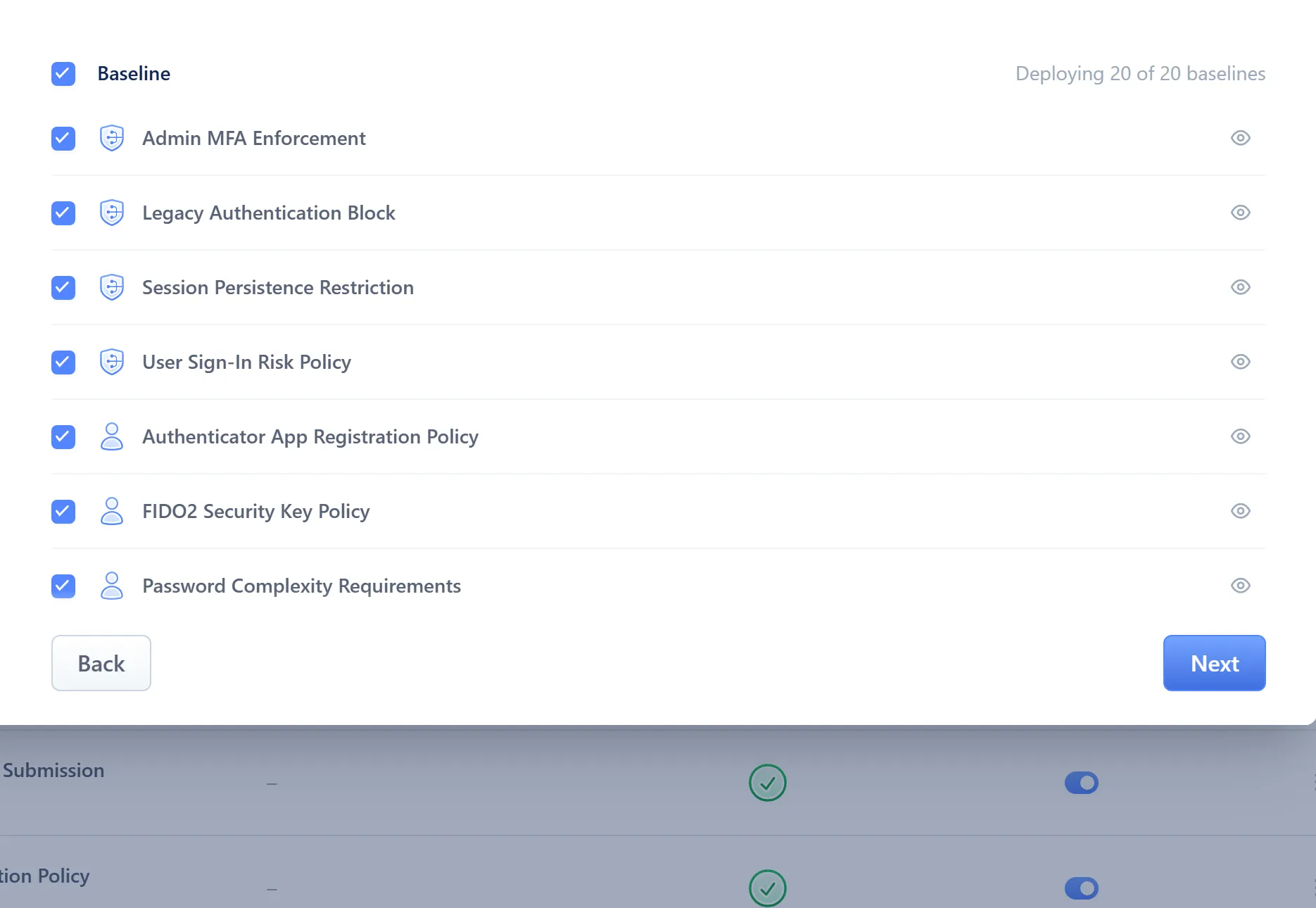
- Header checkbox and “Deploying N of M baselines” count
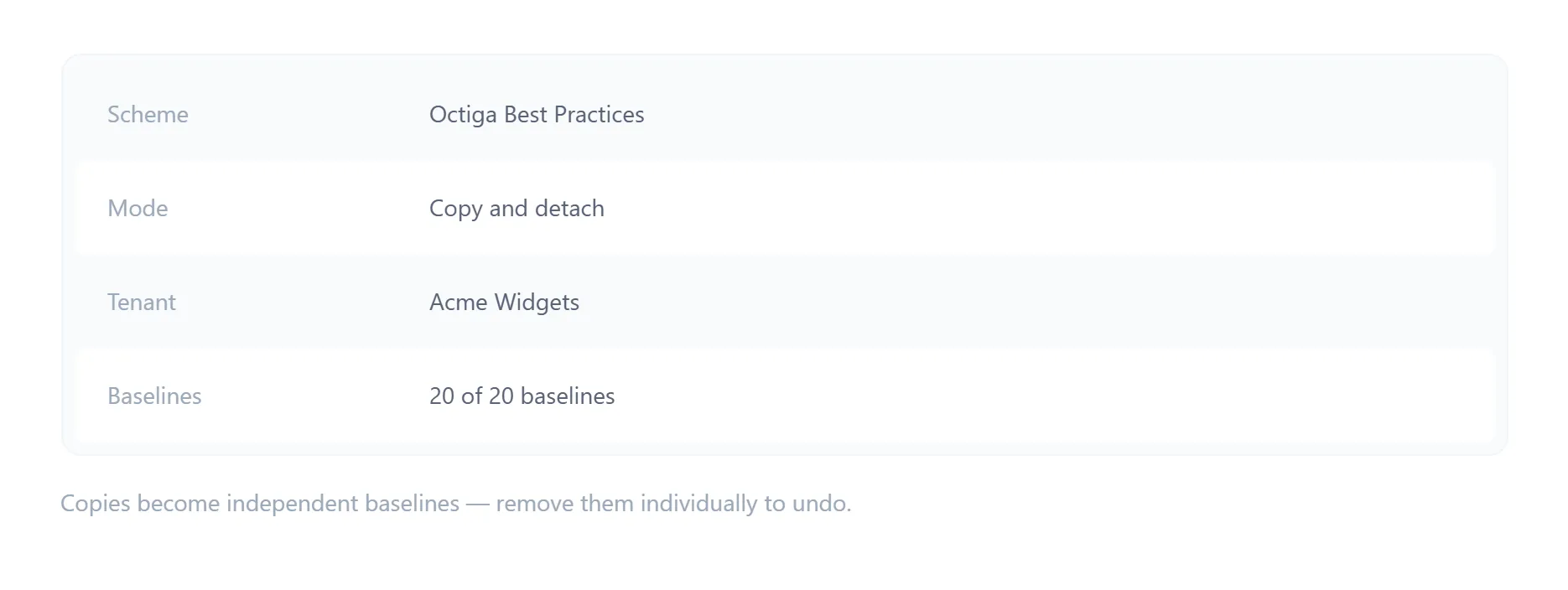
- Summary — scheme, mode, target, baseline count
Managed or Direct, by target
Section titled “Managed or Direct, by target”Either mode works on either target, and each combination is independent of the others:
| Target | Apply as managed | Copy and detach |
|---|---|---|
| Azure group | Sets the group’s scheme link. Every baseline in the scheme applies, and keeps tracking it. | Copies your chosen baselines onto the group as independent values. No link. |
| User | Sets the user’s scheme link — a resolution tier above their groups and below any Direct value they hold. | Copies your chosen baselines onto the user as Direct values — the same write as adding a Direct baseline by hand. |
Deploying an org-level scheme onto the tenant itself has no group or user dimension: both modes apply straight to the tenant, under the org-level rules below.
Org-level rules
Section titled “Org-level rules”Three rules apply whenever you deploy an org-level scheme onto a tenant, wherever you start the deploy:
- One managed scheme per tenant. A tenant can be managed by only one org-level scheme at a time. An Apply as managed deploy onto a tenant already managed by another scheme detaches it from that scheme in the same action, after you confirm.
- Incoming baseline wins, per tag. Whatever you deploy replaces the tenant’s existing value for each baseline it touches, without asking baseline by baseline which one to keep.
- One deployment targets one tenant. You can’t batch-deploy a scheme across several tenants in one run.
Group rule
Section titled “Group rule”A Copy and detach deploy onto a group that’s Managed by a scheme clears that scheme’s link, after you confirm. From then on the group keeps its own copy of the scheme’s baselines and no longer follows changes to the scheme.
Reading the result
Section titled “Reading the result”A deploy reports how many baselines it applied, and how many it skipped for licence.
Check it worked
Section titled “Check it worked”Open the tenant’s Baselines screen. After an Apply as managed deploy, the org-level tab shows a banner above the table naming the scheme that manages the tenant; a Copy and detach deploy shows no banner, because nothing tracks it. On the user-level tab, a deployed group or user shows the scheme’s name in the Scheme column, or “Direct” against each baseline a Copy and detach deploy copied onto them.
If it didn’t
Section titled “If it didn’t”- “This tenant is managed by another scheme” — see Troubleshooting.
- The deploy result shows skipped items — see Licence requirements.
Where you can start a deploy
Section titled “Where you can start a deploy”The wizard opens from many places: a scheme’s own page, the Baseline Schemes list’s row menu, a tenant’s org-level Baselines tab, the tenant’s dashboard, the tenants list, a tenant’s user-level Baselines tab, the Groups page, and the user roster (for one user or a batch). The steps are the same wherever you start.