User remedies
These remedies protect an account at risk: block its sign-in, reset its password, or let Octiga lock it automatically after a serious risk event. Each works the same way wherever you meet it: from an account risk finding, an alert, or a mailbox in Mail flow.
Block sign-in
Section titled “Block sign-in”Blocking sign-in disables the Microsoft 365 account and ends every session it has open, so the user is signed out everywhere as well as stopped from signing in again.
-
From an account risk finding such as a dormant account, a dormant admin, a dormant guest or a shared mailbox that’s signing in, select Resolve.
-
Confirm. Octiga disables the account and revokes its sessions.
To let the user sign in again, re-enable the account in the Microsoft 365 admin center.
Reset password
Section titled “Reset password”Octiga shows you the new password before applying it, so you can hand it to the user safely.
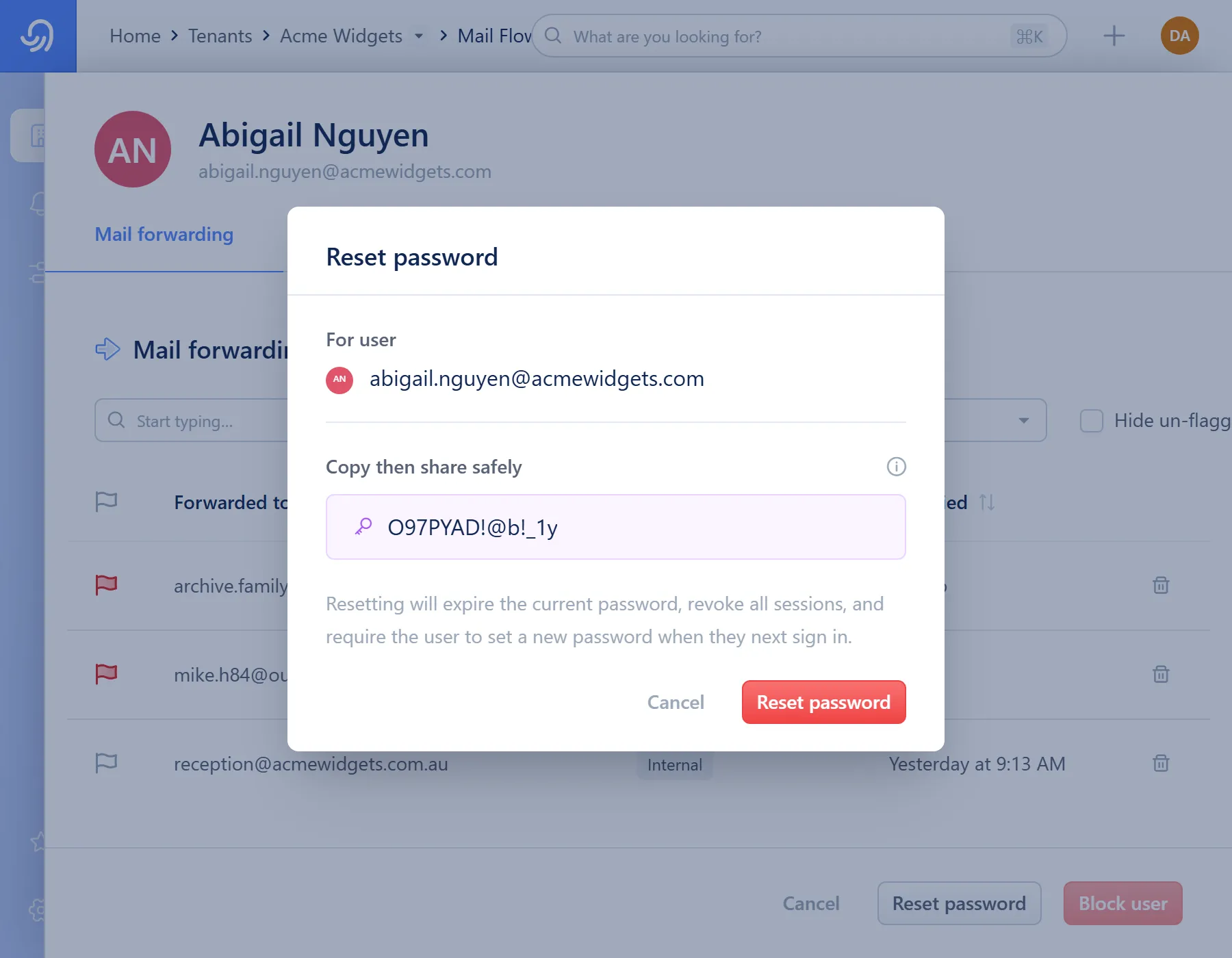
- User the password is for
- The candidate password — hover to reveal Copy
- Reset password
-
Open Reset password from a mailbox’s side sheet, an alert’s user actions, or an account risk finding such as an admin with a mailbox or an anonymous admin.
-
Hover the password panel to reveal Copy, and copy it somewhere safe. It isn’t shown again after the dialog closes.
-
Select Reset password to apply it.
Once the reset is applied, the user has to choose a new password the next time they sign in, and every device or browser they were signed in on is signed out.
Automatic lockout
Section titled “Automatic lockout”When automatic lockout is on (for a whole tenant or, separately, for an individual user), Octiga blocks sign-in the moment a serious risk event happens against a specific person’s account. The effect is the same as Block sign-in, applied automatically rather than by an operator, and Octiga also sends a lockout email telling whoever needs to know that it happened.
Turn automatic lockout on or off
Section titled “Turn automatic lockout on or off”Coming soon
This part of Octiga isn't built yet. Check back once it ships.
What each remedy changes, and how to reverse it
Section titled “What each remedy changes, and how to reverse it”| Remedy | What changes in Microsoft 365 | How to reverse it |
|---|---|---|
| Block sign-in | The account is disabled and every open session ends | Re-enable the account in the Microsoft 365 admin center |
| Reset password | A new password is set, a change is forced at next sign-in, and every open session ends | Not reversible — reset again if the new password also needs to change |
| Automatic lockout | Same as Block sign-in, plus a lockout email is sent | Same as Block sign-in |