PSA integrations
Connecting a PSA lets Octiga file a ticket automatically whenever an alert fires, instead of you raising one by hand. Come here to connect ConnectWise Manage, Datto/Autotask or HaloPSA, map your tenants to it, and choose which alert severities raise tickets.
How every PSA connection works
Section titled “How every PSA connection works”All three connectors work the same way:
- Connect and test. Enter the PSA’s credentials; Octiga verifies them before saving.
- Map your tenants. Match each Octiga tenant to its client or company record in the PSA.
- Map severities to priorities. Set a ticket priority for each alert severity (critical, danger and warning), separately for Microsoft 365 event alerts and for baseline deviation alerts. Leaving a severity’s priority empty means Octiga raises no ticket for that severity.
Octiga also reads the PSA’s own completed status or statuses. When an alert repeats, Octiga adds a note to the existing ticket unless the PSA shows it as completed, in which case it opens a new one instead.
Each PSA client can be mapped to only one Octiga tenant at a time.
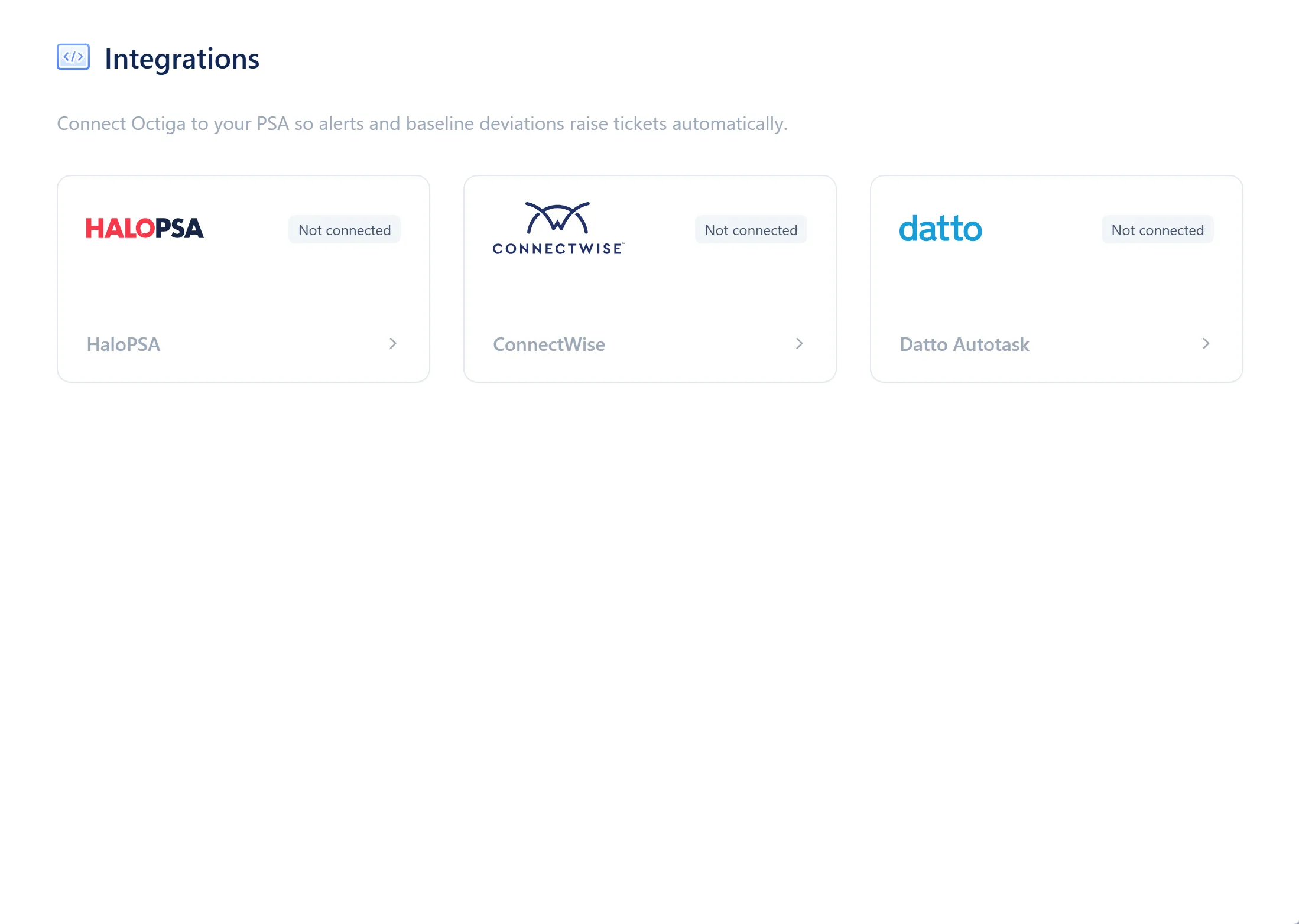
- The PSA’s logo and name
- Connection status badge — Not connected, Disconnected or Connected
- Select the card to connect this PSA, or to open it once connected
Connection states
Section titled “Connection states”| Action | What it does |
|---|---|
| Disconnect | Stops sending tickets. Credentials, tenant mappings and ticket configuration are all kept. Reversible. |
| Reconnect | Resumes sending tickets. No credentials needed. |
| Delete connection | Removes credentials, tenant mappings and ticket configuration entirely. |
Connect a PSA
Section titled “Connect a PSA”-
Open Settings from the gear icon, then choose Integrations.
-
Select the PSA you want to connect.
-
Enter its credentials.
-
Select Save & test connection.
-
Map your tenants to their PSA clients, then set severity-to-priority mappings for event and deviation alerts.
Credentials
Section titled “Credentials”| Field | What it does |
|---|---|
| Site | The ConnectWise server your company signs in to, without https:// |
| Company ID | The company identifier from the ConnectWise sign-in screen |
| Public key | One half of an API member’s key pair |
| Private key | The other half of the pair |
Ticket configuration
Section titled “Ticket configuration”| Field | What it does |
|---|---|
| Board | The board new tickets are raised on |
| Team | The team tickets are assigned to |
| Ticket type | The type applied to a new ticket |
| Sub-type (Microsoft events) | The sub-type for tickets raised from Microsoft 365 event alerts |
| Sub-type (baseline deviations) | The sub-type for tickets raised from baseline deviation alerts |
| New status | The status a new ticket opens in |
| Completed statuses | One or more statuses that mean a ticket is finished; a repeated alert reopens against any other status |
Severity-to-priority mapping is set separately for event alerts and deviation alerts. ConnectWise tickets carry both a priority and a severity value for each grade.
Credentials
Section titled “Credentials”| Field | What it does |
|---|---|
| Username | The dedicated Autotask API user’s username |
| Secret | That API user’s password |
| API integration code | The code Autotask issues to identify Octiga’s traffic |
| Autotask zone | The zone number in your Autotask API address |
Ticket configuration
Section titled “Ticket configuration”| Field | What it does |
|---|---|
| Queue | The queue new tickets are raised in |
| Ticket category | The category applied to a new ticket |
| Ticket type | The type applied to a new ticket |
| Issue type | The issue type for a new ticket |
| Sub-issue type (Microsoft events) | The sub-issue type for tickets raised from Microsoft 365 event alerts |
| Sub-issue type (baseline deviations) | The sub-issue type for tickets raised from baseline deviation alerts |
| Source | The source recorded on a new ticket |
| Note type | The type used when Octiga adds a note to an existing ticket |
| New status | The status a new ticket opens in |
| Completed statuses | One or more statuses that mean a ticket is finished; a repeated alert reopens against any other status |
Severity-to-priority mapping is set separately for event alerts and deviation alerts.
Credentials
Section titled “Credentials”HaloPSA uses OAuth. Octiga re-authenticates automatically once connected.
| Field | What it does |
|---|---|
| Resource | Your Halo API address, shown alongside your API application’s details in Halo |
| Authorisation server | The address Octiga requests access tokens from — a different host from Resource on hosted Halo |
| Tenant | Your Halo tenant name |
| Client ID | The API application’s client ID |
| Client secret | The API application’s client secret, shown only when it is created |
Ticket configuration
Section titled “Ticket configuration”| Field | What it does |
|---|---|
| Team | The team tickets are assigned to |
| Ticket type | The type applied to a new ticket |
| New status | The status a new ticket opens in |
| Completed statuses | One or more statuses that mean a ticket is finished; a repeated alert reopens against any other status |
Severity-to-priority mapping is set separately for event alerts and deviation alerts.
Related
Section titled “Related”To choose who else receives an alert by email instead of (or as well as) a PSA ticket, see Alert recipients. For where PSA tickets fit among the other alert channels, see Alerts.