Tenants and dashboard
The Tenants screen is where each session starts. It lists every client tenant your groups can reach, and each tenant’s menu opens its baselines, mail flow, deployments and monitoring. Come here to find a tenant, check its connection at a glance, or go straight to one of its screens.
The Tenants list
Section titled “The Tenants list”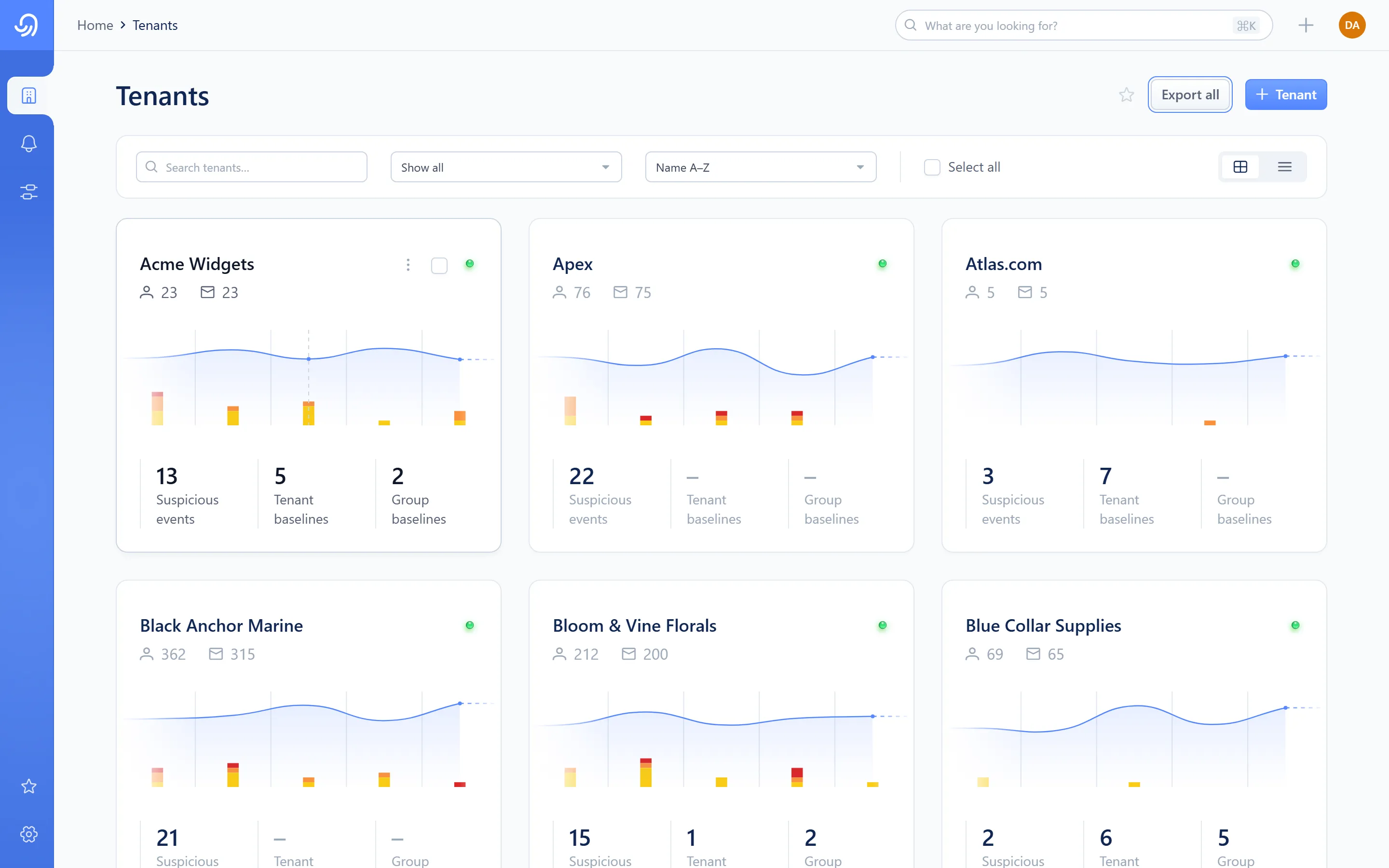
- View switch — cards or table
- Search and filters (connection status, sort order)
- Connection status beacon
- Trend chart of recent activity
- User and mailbox counts
- Per-tenant menu (kebab) — appears on hover, left of the beacon
- Selection checkbox — appears on hover, between the kebab and the beacon
| Area | What it shows |
|---|---|
| View switch | Swaps between a card layout and a compact table. Both read the same data and the same filters. |
| Search and filters | Narrows the list by name and by connection status (Connected, Issues, Not Connected, Pending Approval, Connecting). |
| Connection status beacon | One of seven states: Connected, Issues, Not Connected, Pending Approval, Connecting, Connecting-to-connected, or a loading skeleton. Only the first four can be selected; the rest are transitional. |
| Trend chart | A small chart of the tenant’s recent activity. |
| Stats | Rolled-up user and mailbox counts for the tenant. |
| Per-tenant menu | Opens the tenant’s screens — see the Actions table below. |
| Selection | Selecting one or more tenants reveals a batch bar (Export, Disconnect, Remove). Its actions are coming soon. |
Select a tenant’s card or row (away from its menu) to open its dashboard. You can sort by name or by suspicious-event count, in either direction.
Actions
Section titled “Actions”| Action | What it does | Minimum role |
|---|---|---|
| Open dashboard | Opens the tenant’s dashboard | L1 Read |
| Manage baselines | Opens the tenant’s baselines screens — see Deviations | L1 Read |
| Mail flow | Opens Mail flow | L1 Read |
| Deploy scheme | Opens the deploy wizard for this tenant — see Deploying a scheme | L1 Read/Write |
| Monitoring | Opens the tenant’s event monitoring — see Events | L1 Read |
| Star a tenant | Adds it to the Starred panel for quick return | L1 Read |
The Tenant dashboard
Section titled “The Tenant dashboard”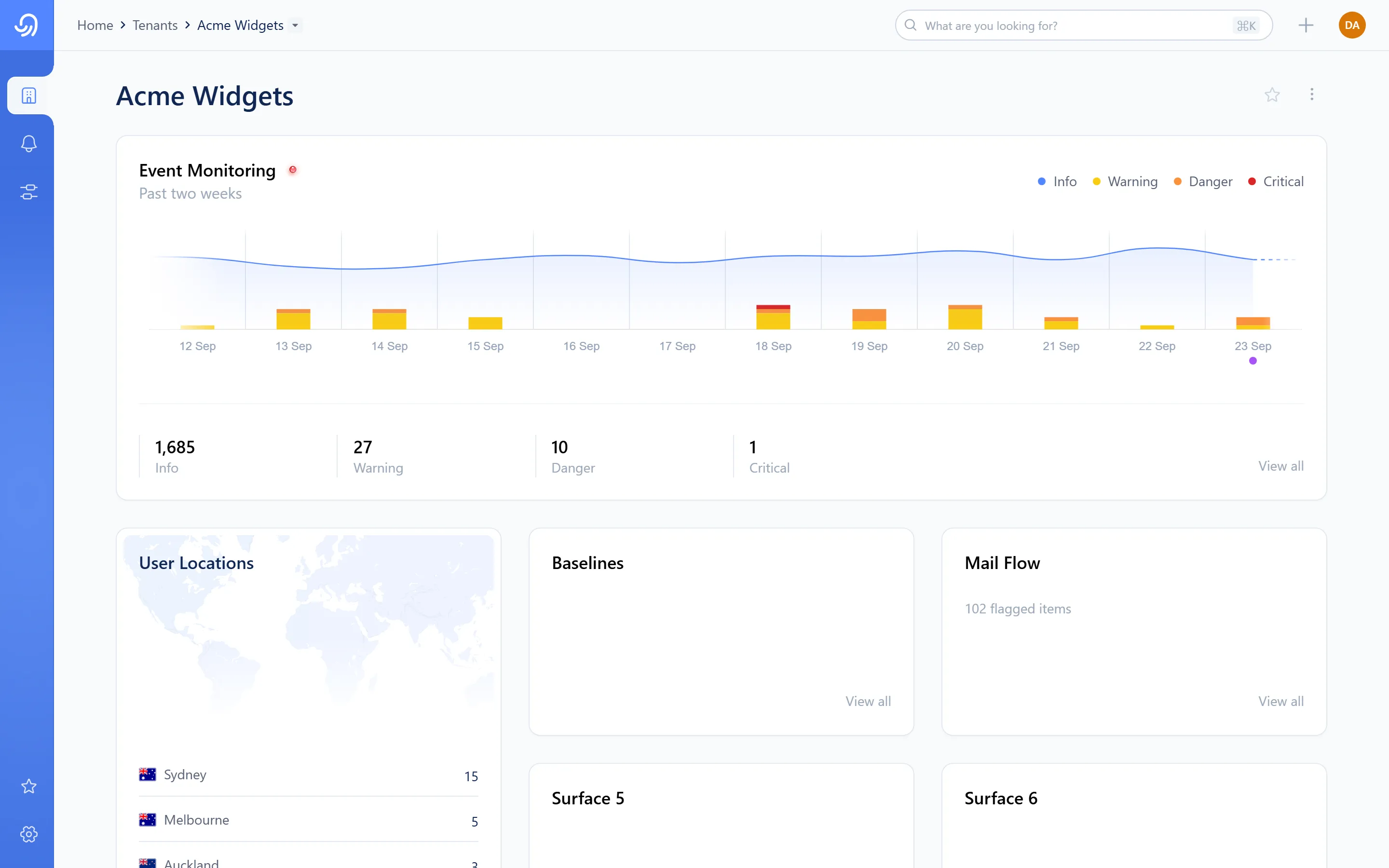
- Monitoring chart, with a count of events by severity underneath
- Sign-in map, with a ranked list of the top countries
- Baselines summary card
- Mail flow summary card
| Area | What it shows |
|---|---|
| Monitoring chart | Recent event volume for the tenant, with an Info / Warning / Danger / Critical count underneath. A Monitoring link opens the full Events screen. |
| Sign-in map | Where the tenant’s users have signed in from, by country, with a ranked country list beside the map. |
| Baselines card | The tenant’s flagged baseline count, with a link into its baselines screens. |
| Mail flow card | A one-line summary of flagged mailbox findings — inbox rules and forwards together — with a link into Mail flow. |
More tiles
Section titled “More tiles”Coming soon
This part of Octiga isn't built yet. Check back once it ships.
Getting around
Section titled “Getting around”These work the same way on every screen.
Search (⌘K / Ctrl+K)
Section titled “Search (⌘K / Ctrl+K)”Press ⌘K (macOS) or Ctrl+K (Windows) anywhere, or select the search field in the top bar, to open global search. Results are grouped:
- Pages — the four MSP-level screens
- Settings — the settings sections you can reach
- Tenants — every tenant your groups reach that is connected or has issues
- Users — people across every tenant’s roster (shown as name over email; selecting one opens their entry in that tenant’s user roster)
- Schemes — org-level and user-level schemes
With no query, search shows your recent selections, which you can remove one at a time or all at once.
Starring
Section titled “Starring”Select the star on a screen’s title to add it to your Starred panel, opened from the star icon in the sidebar. Starred tenants, tenant baselines, mail flow screens and schemes all appear there, most-recently-starred first, and can be removed from the same panel.
Switching tenant from the breadcrumb
Section titled “Switching tenant from the breadcrumb”Inside any tenant screen, the tenant’s name in the breadcrumb trail opens a picker to jump straight to a different tenant without going back to the Tenants list. It keeps whatever page you’re on (Baselines stays on Baselines, Mail flow stays on Mail flow) and drops anything specific to the tenant you’re leaving, such as an open user or group.
The tenant menu (right-click)
Section titled “The tenant menu (right-click)”Right-click a tenant’s name wherever it appears (the Tenants list, a breadcrumb or elsewhere) to open a menu of that tenant’s pages:
- Dashboard
- Event monitoring
- Baselines
- Account risks
- Mail flow
Quick add
Section titled “Quick add”The + icon in the top bar opens shortcuts to create things without leaving where you are: a new event rule, or a new report schedule.
More quick add shortcuts
Section titled “More quick add shortcuts”Coming soon
This part of Octiga isn't built yet. Check back once it ships.