Profile
Profile lets you keep your own Microsoft 365 details up to date without leaving Octiga, change your photo, and check what access Octiga gives you. Every role has it. What you can change depends on your rights in Microsoft 365, not on your Octiga role.
Opening Profile
Section titled “Opening Profile”Select your avatar at the top right of Octiga and choose Profile. Profile is also in the Settings menu, opened from the gear icon at the bottom of the sidebar.
The Microsoft 365 view
Section titled “The Microsoft 365 view”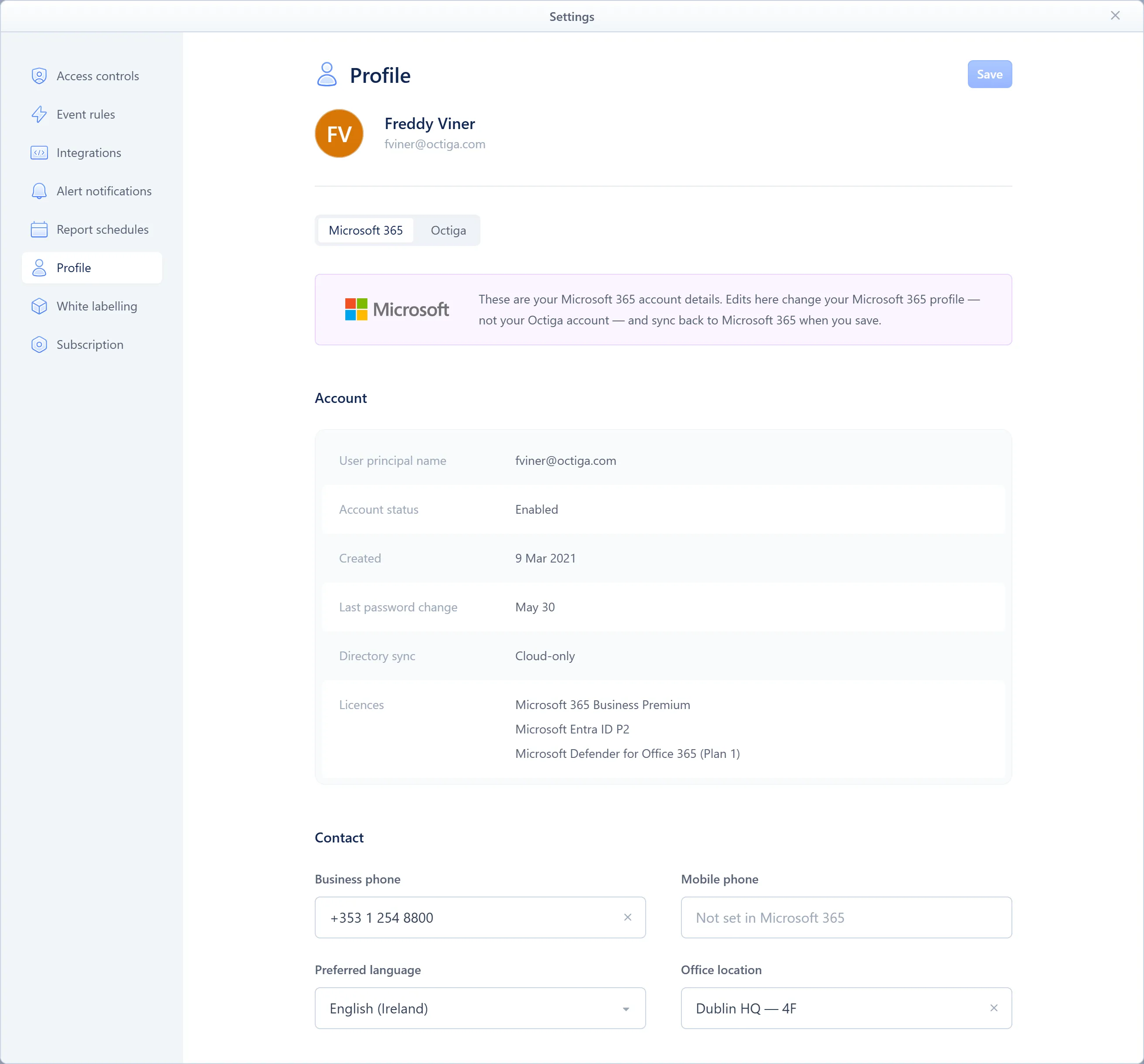
- Profile in the Settings sections list
- Your photo, or your initials if you have none: select it to change the photo
- The Microsoft 365 and Octiga views
- Save, which sends your edits to Microsoft 365
- Account, read-only details from Microsoft 365
- An empty field reads Not set in Microsoft 365
Profile opens on Microsoft 365: the details of your own account in your organisation’s Microsoft 365, the one you sign in to Octiga with. Edits here change your Microsoft 365 profile, not your Octiga access, and reach Microsoft 365 when you select Save.
| Group | Fields |
|---|---|
| Account | User principal name, Email, Account status, Created, Last password change, Directory sync, Licences. Read-only. |
| Contact | Business phone, Mobile phone, Preferred language, Office location |
| Address | Street address, City, State or province, Postal code, Country |
| Work | Display name, Job title, First name, Last name, Department, Company name, Employee type, Employee ID |
In Account, Email appears only when your mail address differs from your user principal name. Directory sync reads Cloud-only, or shows the tag Hybrid — synced from on-premises AD for an account synced from on-premises Active Directory. Licences lists the Microsoft 365 service plans assigned to you.
You can edit Contact and Address for yourself. The Work fields need a directory admin role in Microsoft 365 (Global Administrator, Privileged Role Administrator or User Administrator). Without one, they’re disabled and the note above them says your account doesn’t hold those permissions.
An empty field shows Not set in Microsoft 365. A field you’ve changed but not yet saved shows a dot beside its label.
Edit your profile
Section titled “Edit your profile”-
On the Microsoft 365 view, change the fields you need.
-
Select Save. Octiga sends only the fields you changed to Microsoft 365 and confirms with Profile updated.
Switching between the Microsoft 365 and Octiga views keeps your unsaved edits. If you close Settings or open another section before saving, Octiga asks Discard changes? first; select Keep editing to go back to them.
Change or remove your photo
Section titled “Change or remove your photo”Select your photo (or your initials) at the top of Profile to open Change photo.
-
Select Upload and choose an image, such as a JPEG or PNG.
-
Drag and resize the round crop area to frame your photo.
-
Select Save photo. Octiga resizes the photo, saves it to your Microsoft 365 account and confirms with Profile photo updated. Your avatar in Octiga’s top bar changes too.
To take your photo off, select Remove in the same dialog. It’s removed straight away, with no second confirmation. Cancel closes the dialog; if you’ve picked a new photo, Octiga asks before discarding it.
The Octiga view
Section titled “The Octiga view”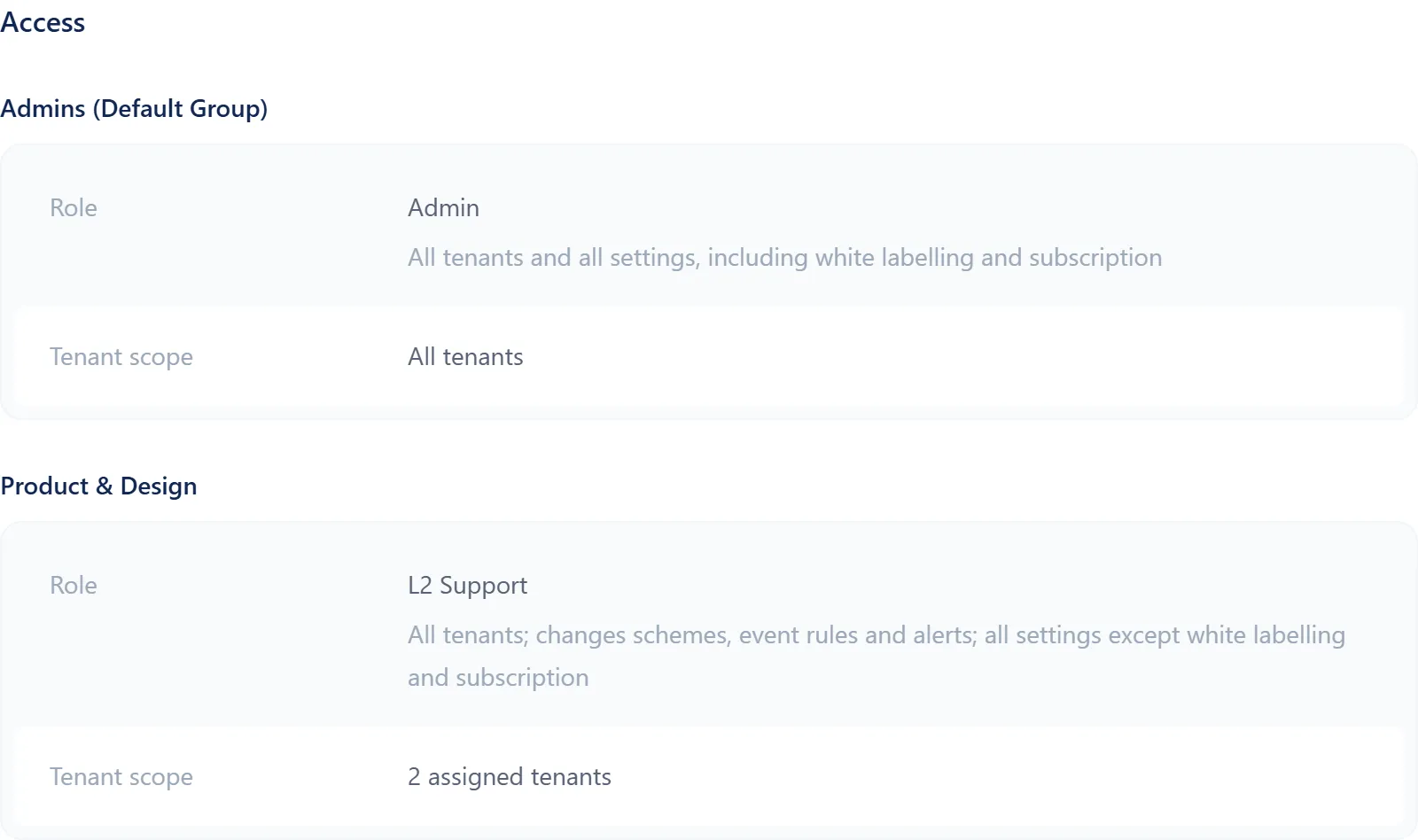
- An access group you belong to
- Role, with a one-line summary of what it allows
- Tenant scope: All tenants, or how many tenants the group is assigned
Select Octiga to see the access Octiga gives you. Under Access, each access group you belong to has its own block showing the group’s Role and Tenant scope. This view is read-only: your administrators manage groups in Access controls. When you’re in more than one group, your highest role applies; Roles and permissions explains how roles and tenant reach combine.
If a save doesn’t go through
Section titled “If a save doesn’t go through”- Couldn’t update your profile — Microsoft 365 hasn’t granted Octiga permission. Profile and photo changes need the User.ReadWrite.All application permission consented for the Octiga app in your organisation’s Microsoft 365. Ask your Microsoft 365 admin to grant it, then save again. A photo change that runs into this shows the same advice in the photo dialog.
- Couldn’t update your profile. The change didn’t reach Microsoft 365. Your edits stay in the form, so you can select Save to try again.
- Couldn’t update your photo — try again. The photo change didn’t reach Microsoft 365. The dialog stays open and keeps any crop you’ve framed, so you can select Save photo or Remove again.
- Couldn’t use that file. The file isn’t an image the dialog can read, or it’s still over 4 MB after resizing. Choose a different or smaller image with Upload.