Offboard a user
When someone leaves a client, the Offboard user wizard closes their account down and hands their mail on in one run. You choose what happens: block sign-in and end their sessions, reset the password, set an auto-reply, give a colleague access to the mailbox, put it on litigation hold, convert it to shared and return the licences. Octiga then works through your choices in a fixed order and shows each one as it finishes.
Offboard a user
Section titled “Offboard a user”-
Open the wizard.
In User management, open the user’s row menu and select Offboard…. You can also tick only that user’s row and choose Offboard… on the batch bar, or select User actions, then Offboard…, at the foot of the user’s side sheet. The wizard offboards one user at a time.
-
Secure the account.
Everything that applies to this user starts ticked. Untick anything you don’t want done, then select Next: Mailbox. For a user with no mailbox, this step ends with Offboard user instead; go to step 4.
-
Hand off the mailbox.
Choose whether to set an auto-reply, give someone access to the mailbox and put it on litigation hold.
-
Start the run.
Select Offboard user. The run starts straight away, with no further confirmation.
-
Check the result.
Watch each step finish, retry any that failed, then select Done.
Secure the account
Section titled “Secure the account”The first step lists what happens to the account itself.
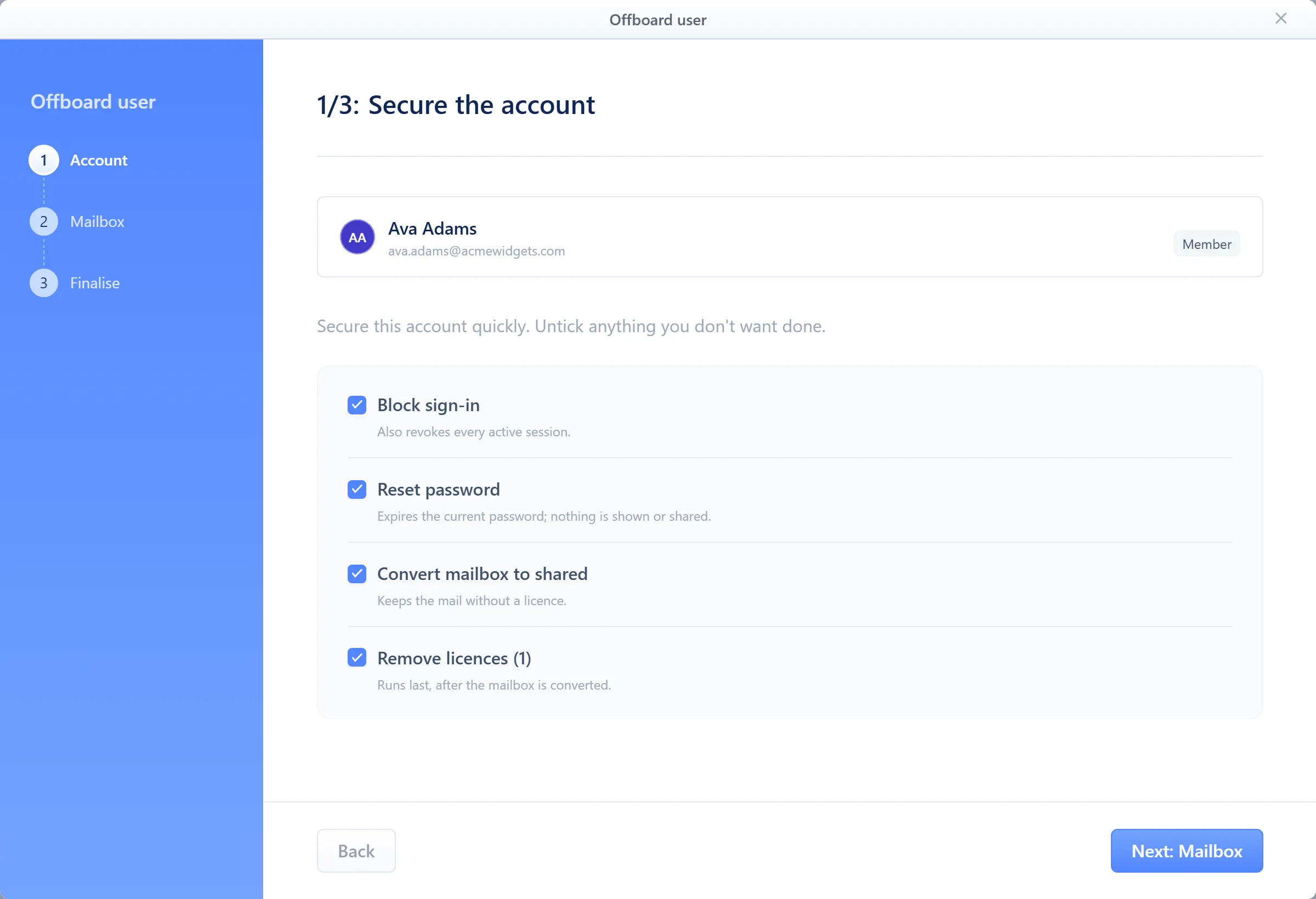
- The wizard’s steps: Account, Mailbox and Finalise
- Block sign-in
- Reset password
- Convert mailbox to shared
- Remove licences, with the number the user holds
- Next: Mailbox
| Action | What it does |
|---|---|
| Block sign-in | Stops the user signing in and ends every session they have open. If the account is already blocked, the row reads Already blocked. |
| Reset password | Replaces the password with a new one that nobody is shown, so the old password stops working. |
| Convert mailbox to shared | Keeps the user’s mail in a shared mailbox, which doesn’t need a licence. If the mailbox is already shared, the row reads Already shared and Remove licences doesn’t appear. |
| Remove licences | Returns the user’s licences to the pool. It runs last, after the mailbox is converted. If the user holds none, the row reads None assigned. |
What you see depends on the user:
- No mailbox, or a guest. The wizard has two steps, Account and Finalise, so Offboard user is on this step. A guest gets Block sign-in only.
- A Global Administrator. A note reminds you that offboarding doesn’t remove roles. To remove them, select Manage beside Roles on the user’s Account tab (User management).
- The tenant’s only Global Administrator. You can’t offboard them, because the tenant would be left with no one who can administer it. Give another user the Global Administrator role first, with Manage beside Roles on their Account tab (User management) or in Microsoft 365.
If you untick Convert mailbox to shared but leave Remove licences ticked, a warning appears: “Mailbox will be deleted after 30 days”. Microsoft deletes an unlicensed user mailbox after 30 days, so tick the conversion again to keep the mail.
Hand off the mailbox
Section titled “Hand off the mailbox”The second step decides what happens to the user’s mail once they’ve left. It appears only when the user has a mailbox.
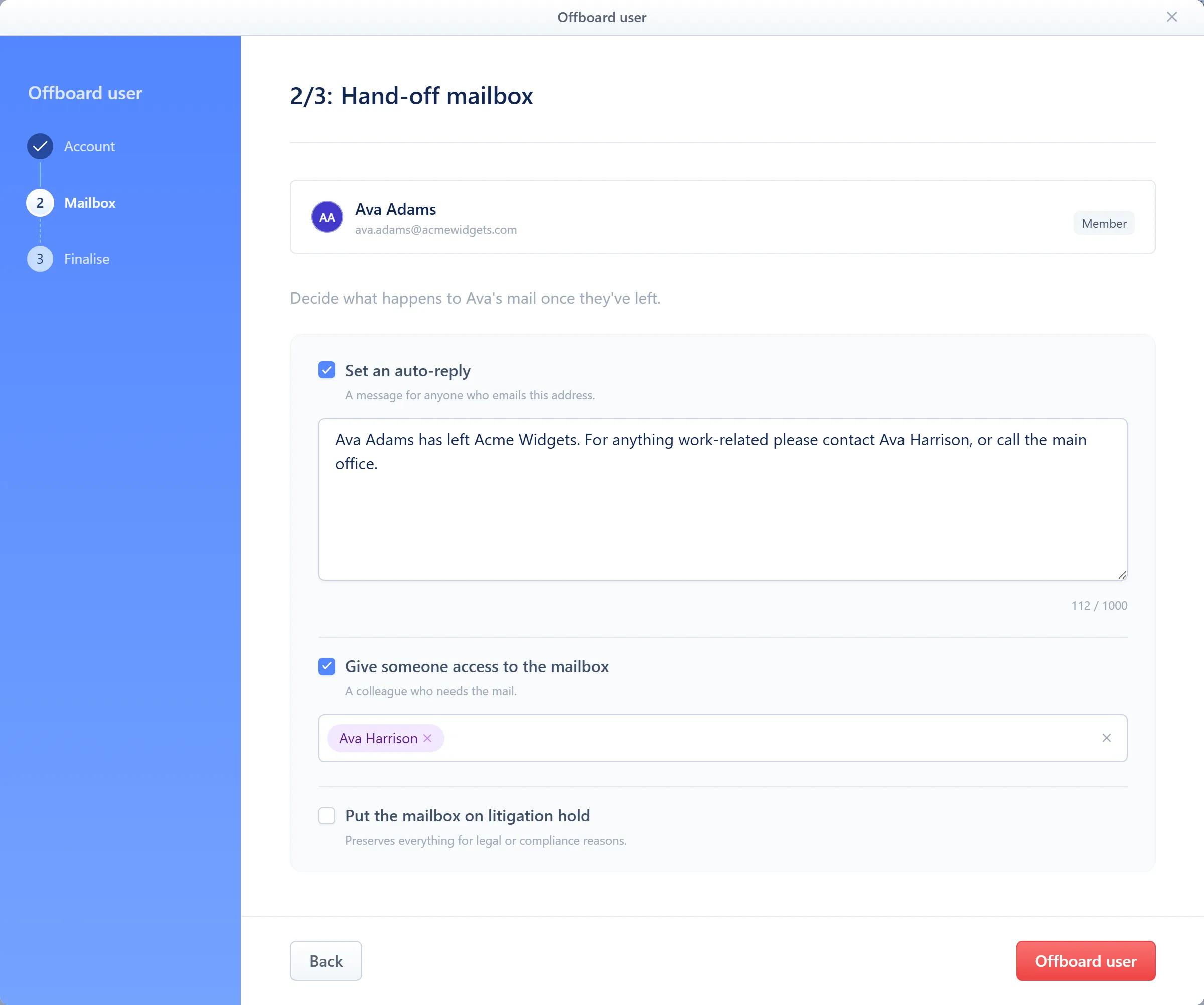
- Set an auto-reply
- The auto-reply message, up to 1,000 characters
- Give someone access to the mailbox
- The colleagues who get access
- Put the mailbox on litigation hold
- Offboard user
- Set an auto-reply. Turns on an automatic reply to everyone who emails the address, inside and outside the organisation. The message starts as “Name has left tenant. For anything work-related please call the main office.” When you pick a colleague below, the message asks people to contact the first one you picked, or call the main office, until you edit the text yourself.
- Give someone access to the mailbox. Search for colleagues in the same tenant and pick one or more. Each gets Full Access to the mailbox.
- Put the mailbox on litigation hold. Preserves everything in the mailbox for legal or compliance reasons. Octiga turns the hold on; it never turns it off.
Watch the run
Section titled “Watch the run”After you select Offboard user, the last step lists every action you chose and works through them one at a time, in this order: block sign-in, reset the password, set the auto-reply, give mailbox access, set litigation hold, convert the mailbox, remove licences. Each row shows Queued, then Saving…, then the outcome.
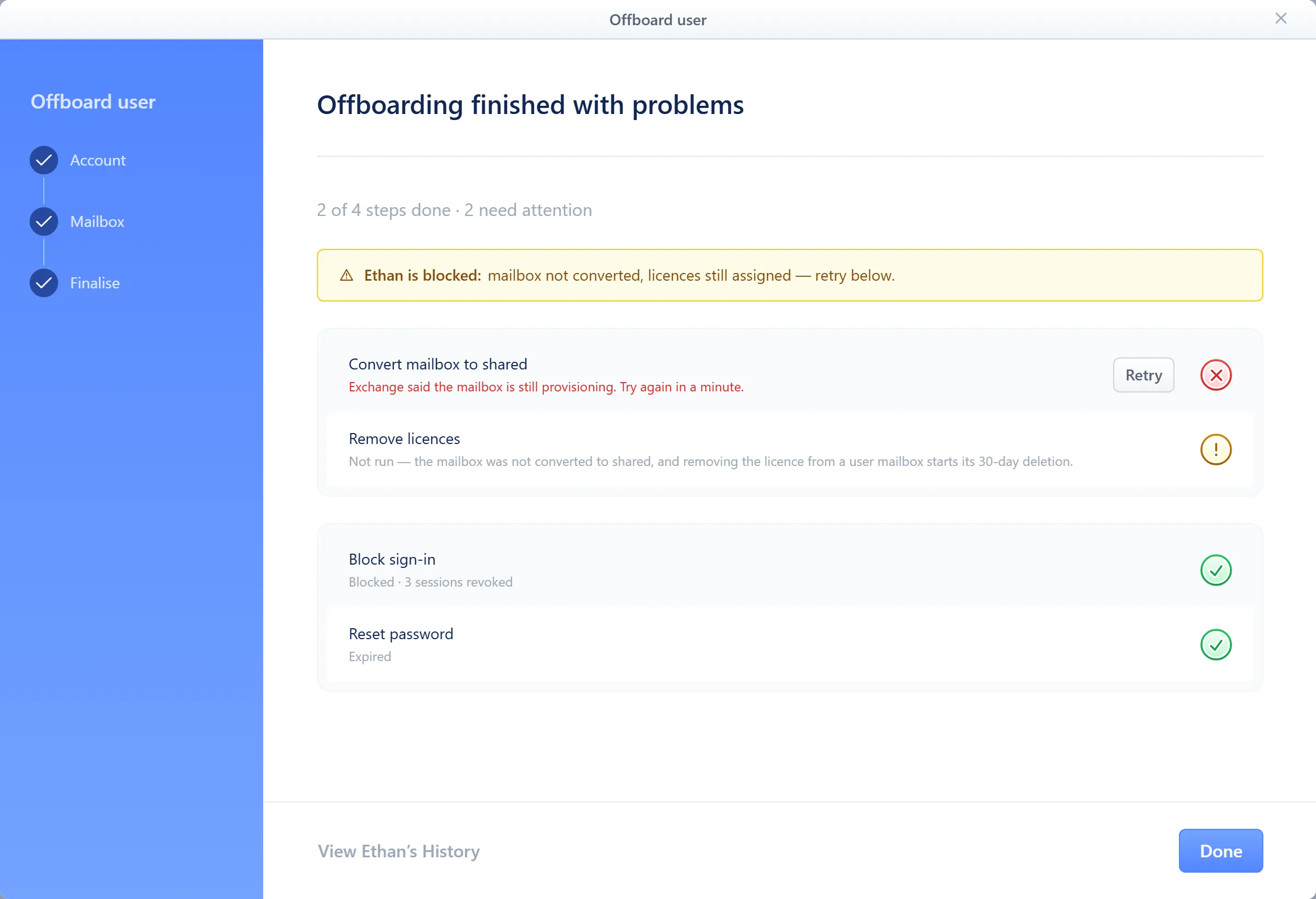
- How many steps finished and how many need attention
- What still needs doing
- Retry on the step that failed, with the reason below it
- A step skipped because of the failure
- Steps that finished
- Link to the user’s History tab
- Done
When the run finishes, the heading tells you how it went:
| Heading | What it means |
|---|---|
| Name has been offboarded | Every step finished. |
| Offboarding finished with problems | At least one step failed or was skipped. Those steps are listed first, each with the reason, and the steps that finished are listed below them. |
| Offboarding couldn’t start | Sign-in couldn’t be blocked, so nothing else ran. |
Two rules protect the user’s data when a step fails. If Block sign-in fails, every later step is skipped, so the mailbox isn’t handed on while the user can still sign in. If the mailbox conversion doesn’t complete, Remove licences is skipped, so the mailbox isn’t left unlicensed and deleted after 30 days. If the account was blocked but its sessions couldn’t be ended, the Block sign-in row says so and the rest of the run goes ahead.
Retry a failed step
Section titled “Retry a failed step”Once the run finishes, a failed step has a Retry button. Retrying runs that step again, together with any steps it held back; steps that already finished aren’t repeated. When you’re done, select Done, or select the link beside it (for example View Ethan’s History) to open the user’s History tab.
Leave a run and come back to it
Section titled “Leave a run and come back to it”You don’t have to wait for a run to finish. Close the wizard with Close, the ✕ or Escape, and the run carries on. A progress panel in the bottom-right corner follows it while you move around Octiga.
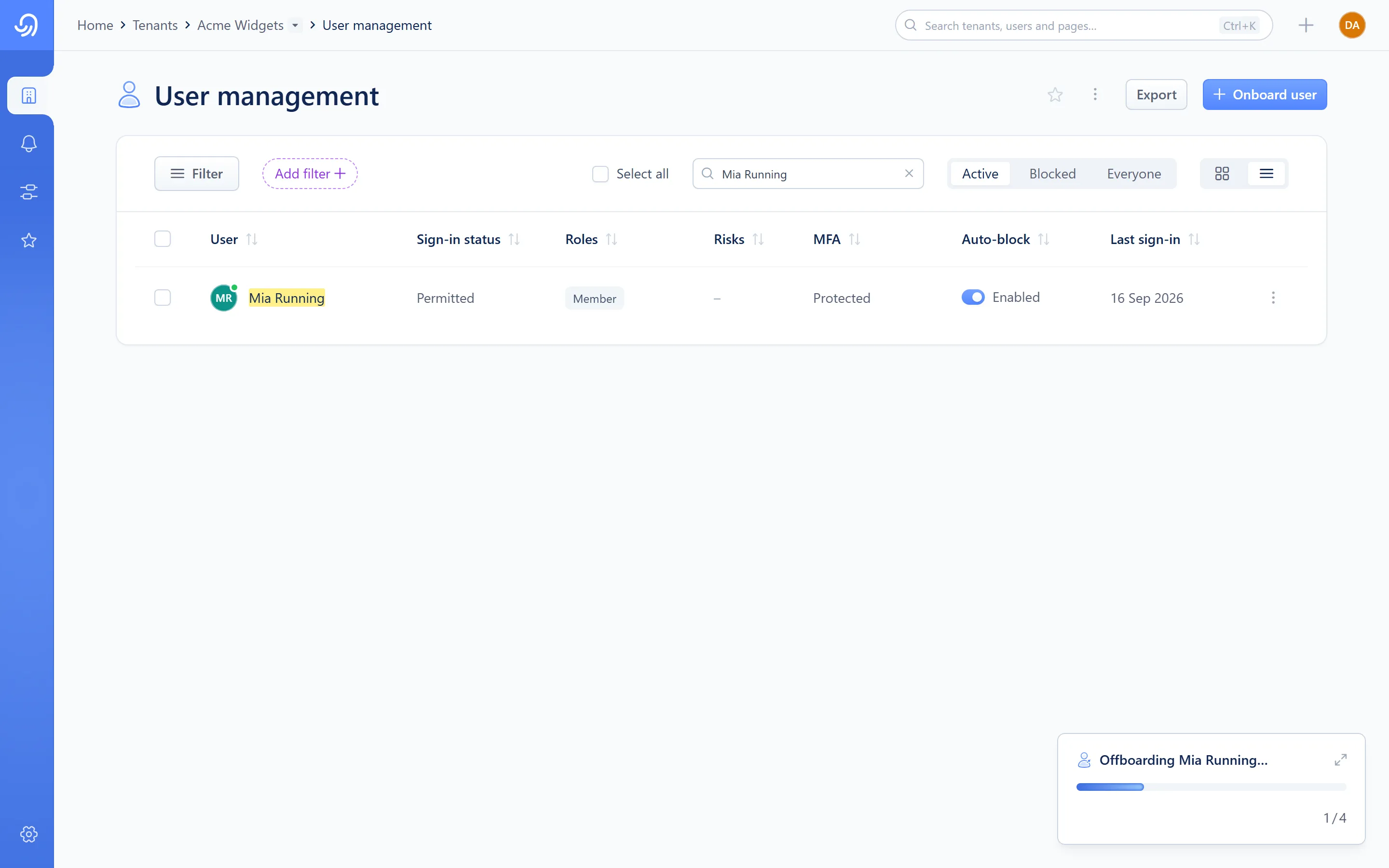
- The user’s row menu, where Offboard… opens the wizard
- The run in progress
- Expand, to reopen the wizard on the run
- Steps finished so far
When the run finishes, the panel shows the result. After a clean finish the panel closes itself a few seconds later; after a run with problems it stays until you select Close. The panel doesn’t survive reloading Octiga, but the run carries on and the user’s History tab keeps the record.
Selecting Offboard… again for the same user also reopens the run, if it’s still going, finished with problems or couldn’t start, so you can retry a failed step. After a run that finished cleanly, Offboard… starts a new one.
The History tab
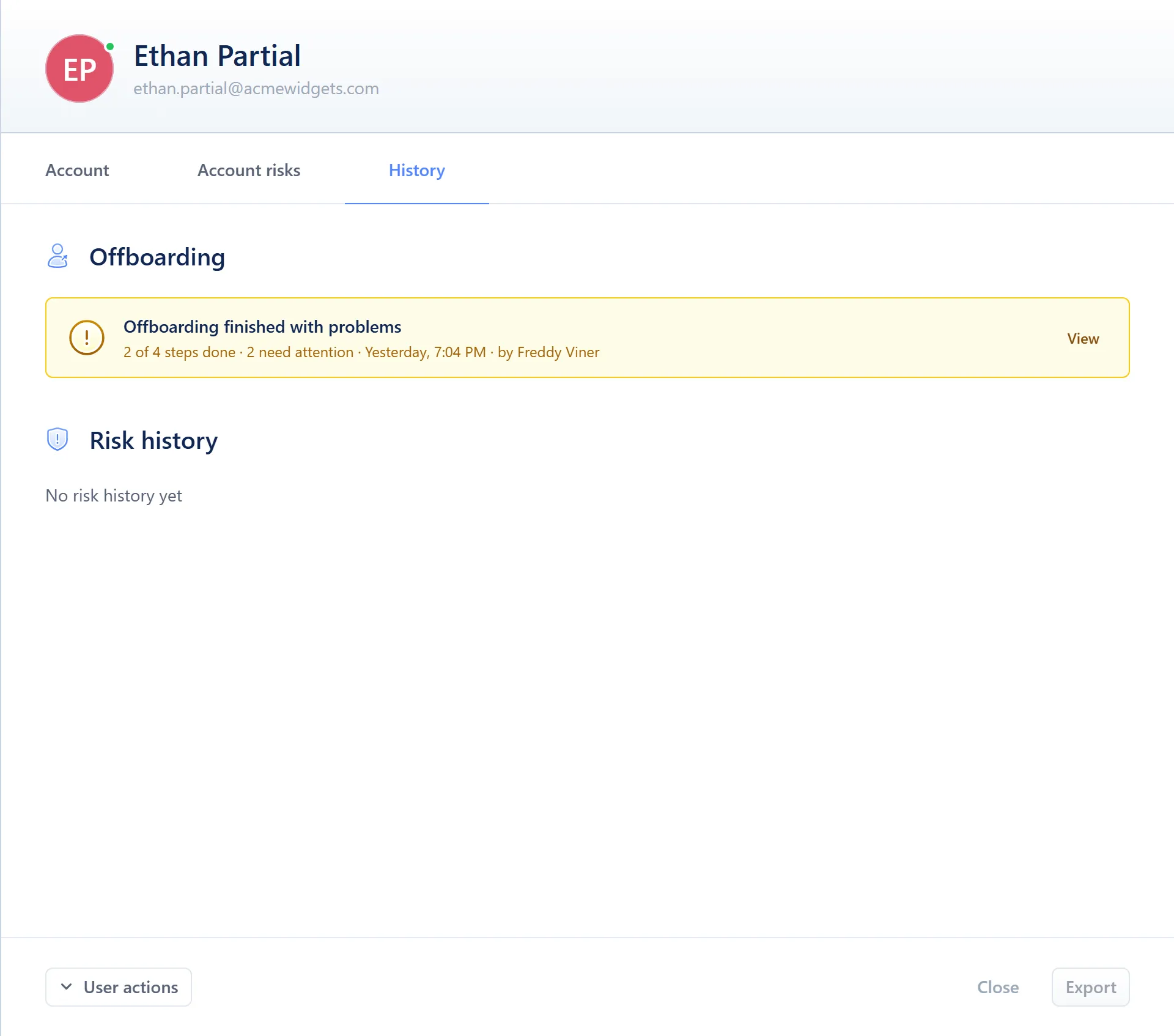
Section titled “The History tab”The user’s History tab, on their side sheet in User management, shows their latest offboarding at the top: how it went, how many steps finished, when, and who started it. Select View to open the run in the wizard. A run that finished cleanly opens read-only.
- History tab
- The latest offboarding: outcome, progress, when and who started it
- View, to open the run in the wizard
- User actions, where Offboard… is also offered
Check it worked
Section titled “Check it worked”In User management, the user now appears under the Blocked lens, and their sign-in reads Blocked (Sign-in status in the table, Sign-in on the card). Their History tab shows the run.
What the wizard leaves alone
Section titled “What the wizard leaves alone”Offboarding doesn’t delete the account, remove the user’s directory roles, or take them out of any groups. Licences assigned through a group stay until the user leaves that group. Manage roles, groups and licences from the user’s Account tab in User management.
What you can undo
Section titled “What you can undo”| Action | What changes in Microsoft 365 | How to reverse it |
|---|---|---|
| Block sign-in | The account is disabled and every open session ends | Select Unblock on the user’s row menu in User management. Ended sessions don’t come back; the user signs in again. |
| Reset password | A new password replaces the old one, and nobody is shown it | The old password can’t be restored. To let the user back in, use Reset password… in User management, which shows you the new password before applying it. |
| Set an auto-reply | Automatic replies go to everyone who emails the address | Turn automatic replies off in the Microsoft 365 admin center |
| Give access to the mailbox | The colleagues you picked get Full Access; other Full Access and Send As permissions are removed | Change the mailbox’s permissions in the Exchange admin center |
| Litigation hold | The mailbox is placed on hold | Turn the hold off in the Exchange admin center |
| Convert mailbox to shared | The mailbox becomes a shared mailbox | Convert it back to a regular mailbox in the Exchange admin center, then assign a licence |
| Remove licences | Directly assigned licences return to the pool | Assign them again with Manage beside Licences on the user’s Account tab, or in the Microsoft 365 admin center |
If it didn’t work
Section titled “If it didn’t work”- You can’t go past the first step. Either nothing is ticked, or the user is the tenant’s only Global Administrator.
- “Already running”. An offboarding for this user started elsewhere, perhaps by a colleague. Open the user’s History tab and select View to follow it.
- The account was created moments ago. The wizard says the account isn’t in the directory yet, and nothing is changed. Wait a minute and try again.
- A step failed. Read the reason on its row, fix the cause if it’s on the Microsoft 365 side, then select Retry.