Applications
Applications lists the apps that have been granted access to a tenant and grades each one by risk. Come here to find an app that can change more than it should, or one from a publisher Microsoft hasn’t verified, and cut its access.
Open it from Applications in the tenant’s menu (see Tenants and dashboard).
What’s listed
Section titled “What’s listed”Every app consented in the tenant appears, except Microsoft’s own built-in apps. Each one can hold two kinds of permission:
- App-only — the app acts as itself, with no user signed in. The side sheet calls these Application permissions.
- Delegated — the app acts for a signed-in user, within that user’s rights. An admin can consent for every user, or a user can consent for themselves.
The Applications screen
Section titled “The Applications screen”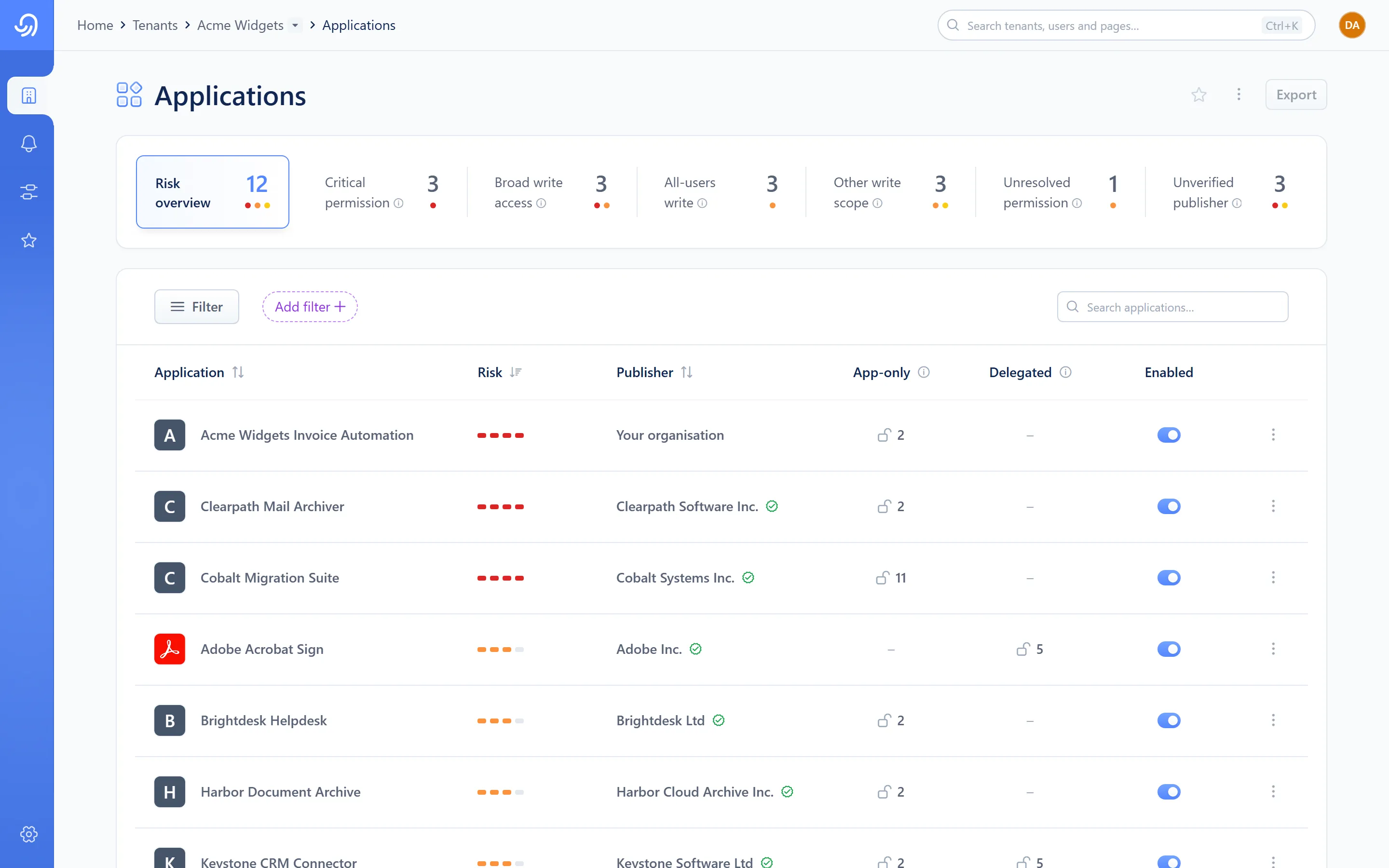
- Risk overview — every app with at least one finding
- Finding cards — one per finding, each counting apps
- Filter — opens the filter drawer
- Search by application or publisher
- Risk — the app’s worst finding
- Publisher — a tick marks a verified publisher
- App-only and Delegated permission counts
- Enabled switch
- Row menu — View details, Open in Entra
The risk strip counts apps, not permissions. Risk overview counts every app with at least one finding; each other card counts the apps with that finding, so an app with two findings appears in both cards. The coloured dots show which grades are among them. Select a card to filter the table to that finding, and select it again to clear the filter. Each finding card’s information icon explains its finding:
| Finding | What it means |
|---|---|
| Critical permission | App-only permissions that reach the whole tenant with no user signed in |
| Broad write access | App-only permissions that can change every item of a type across the tenant |
| All-users write | A write permission an admin consented for every user, so it applies to anyone who uses the app |
| Other write scope | Any other permission that can change data |
| Unresolved permission | A permission Octiga couldn’t identify, shown by its ID. Its access is unknown, so it’s graded Danger |
| Unverified publisher | The publisher hasn’t completed Microsoft’s verification. Counted only when the app holds a permission |
Risk shows the app’s worst finding as Critical, Danger or Warning; hover over it for the name. Grey dashes mean No findings. A disabled app and Octiga’s own app always show grey and aren’t counted in the strip, whatever permissions they hold.
Publisher shows the publisher’s name, with a tick when Microsoft has verified it. An app registered in this tenant reads Your organisation, and one with no publisher recorded reads Unknown.
App-only and Delegated count the permissions of each kind. Hover over a count for the detail, including whether the delegated permissions were consented for all users or by how many users. A dash means none.
Select Filter or Add filter to open the filter drawer, which narrows the list by Risk, Publisher, Verified, Permission type, Delegated scope and Status. Search matches an app’s name or its publisher. You can sort by Application, Risk or Publisher; the list opens worst risk first. To reload the list, select Refresh from the page’s ⋮ menu.
Turning an app off and on
Section titled “Turning an app off and on”The Enabled switch controls whether the app can sign in. Turning it off asks you to confirm first. A disabled app keeps its permissions, so turning the switch back on restores it as it was, with no confirmation. Either change saves straight away.
The application side sheet
Section titled “The application side sheet”Select a row, or View details from its ⋮ menu, to open the app in a side sheet.
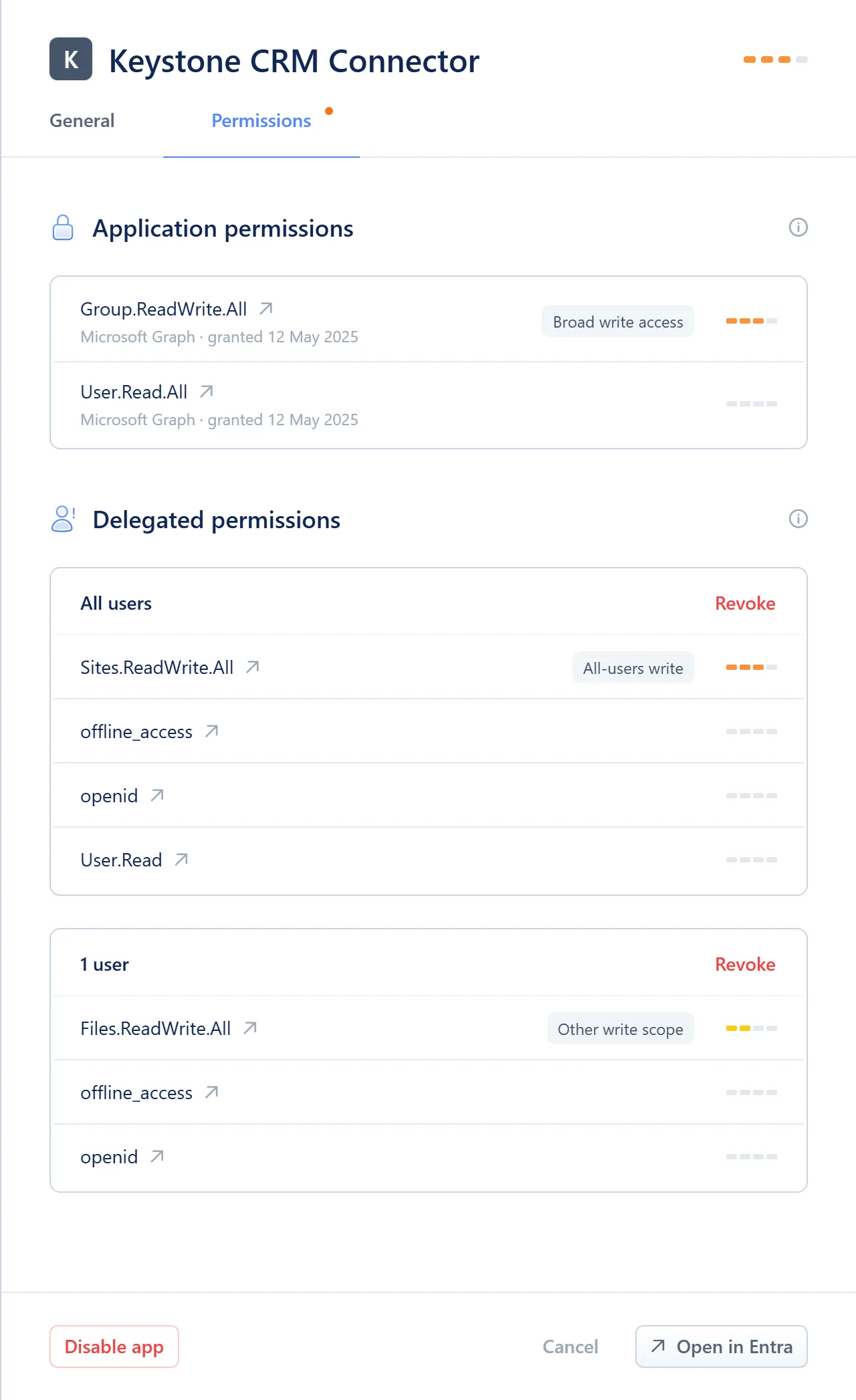
- The app’s risk
- General and Permissions tabs — the dot takes the app’s risk colour
- An application permission, with its resource and the date it was granted
- The permission’s finding and its grade
- A delegated grant — All users, or 1 user
- Revoke — removes the whole grant
- Opens the permission in Microsoft’s Graph permissions reference
- Disable app (Enable app for a disabled app)
- Open in Entra
General shows:
- Status — Enabled or Disabled; Octiga’s own app reads Locked.
- Publisher — as in the table.
- App ID — shortened to its first and last four characters. Hover for the full ID and the tenant that owns the app registration; select it to copy the ID.
- Website — the app’s homepage, when it has one.
Permissions has two sections, each with an information icon explaining the kind of permission:
- Application permissions — one row per permission. Hover over a row, or move to it with the keyboard, to show Remove in place of its grade.
- Delegated permissions — one card per grant, titled All users for an admin consent or 1 user for a consent one user gave. Hover over the title to see the consent type and, for one user, who it was. A grant on an API other than Microsoft Graph names that API in brackets. Revoke in the card’s header removes the whole grant.
A row’s tag names its finding (hover over the tag for what it means), and the dashes show its grade. A Microsoft Graph permission links to its entry in Microsoft’s Graph permissions reference. The dot on the Permissions tab takes the app’s risk colour, so you can see from General that something is there.
The footer holds Disable app (or Enable app for a disabled app), Cancel and Open in Entra, which opens the app’s enterprise application page in the Microsoft Entra admin centre, in the customer’s directory. Open in Entra is also on each row’s ⋮ menu.
Octiga’s own app
Section titled “Octiga’s own app”Octiga’s own app carries a grey Locked tag. Disabling it or removing its permissions would cut Octiga off from the tenant, so its Enabled switch, Disable app and Revoke are disabled and its rows offer no Remove. Hover over one of them to see why.
Actions
Section titled “Actions”| Action | What it does | Minimum role |
|---|---|---|
| Disable or enable an app | Stops the app signing in, or lets it sign in again; its permissions are kept | L1 Read/Write |
| Remove an application permission | Removes that one permission from the app in the tenant | L1 Read/Write |
| Revoke a delegated grant | Removes every permission on the grant, for everyone it covers | L1 Read/Write |
With L1 Read, these controls are shown disabled, and hovering over one shows Needs read/write access.
Disable an app
Section titled “Disable an app”-
Find the app in the list. The riskiest are at the top, and a finding card narrows the list to one finding.
-
Turn off its Enabled switch, or open it and select Disable app.
-
Select Disable app to confirm.
Octiga disables apps rather than deleting them, so you can turn one back on with its permissions intact: turn its switch on, or open it and select Enable app.
Remove an application permission
Section titled “Remove an application permission”-
Open the app and go to Permissions.
-
Under Application permissions, hover over the permission and select Remove.
-
Select Remove to confirm.
Revoke a delegated grant
Section titled “Revoke a delegated grant”-
Open the app and go to Permissions.
-
Under Delegated permissions, find the grant’s card and select Revoke in its header.
-
Select Revoke to confirm.
Revoking removes every permission on that grant at once. For an All users grant, that’s for every user in the tenant.
The app’s counts and risk update as soon as you remove a permission or revoke a grant.