Security reports
Security reports is where you run a tenant’s security report on demand, read it without leaving Octiga, and download the PDF to share. It also lists every report the tenant’s schedules have sent, so you can check that last month’s report went out. Open it with Security reports in the tenant menu; the page itself is titled Reporting.
The Reporting page
Section titled “The Reporting page”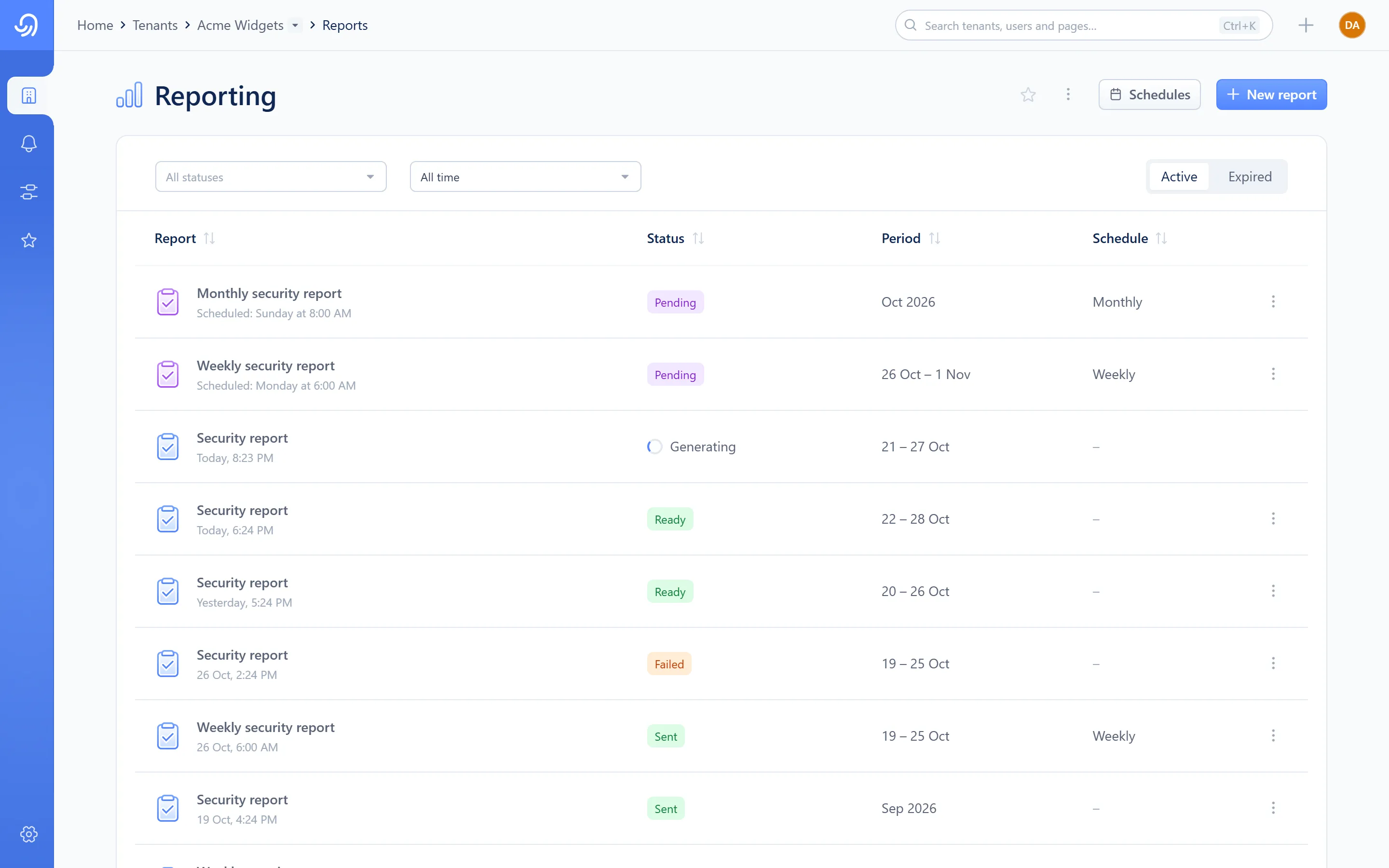
- Schedules — this tenant’s report schedules
- New report — run a report now
- Status filter
- Period filter
- Active and Expired tabs
- A Pending row: the next send of an enabled schedule
- A report being generated
- The row’s ⋮ menu
The table has four columns:
- Report — Weekly security report or Monthly security report for a scheduled send, Security report for one run on demand, with the date and time it was created underneath.
- Status — where the report is. Hover over a status to see what it means.
- Period — the dates the report covers, or the month (Sep 2026) when it covers a whole calendar month.
- Schedule — Weekly or Monthly for a scheduled report, a dash for one run on demand.
| Status | What it means |
|---|---|
| Pending | The next send of an enabled schedule. Each enabled schedule has one, always at the top of the Active tab, showing when it’s due and the dates it will cover. |
| Generating | The report is being generated now. |
| Ready | Generated on request. It wasn’t emailed; open or download it here. |
| Sent | Generated and emailed to the schedule’s recipients. |
| Failed | The report couldn’t be generated. For a scheduled report, nobody received it. |
| Expired | The PDF is no longer kept. The report stays in the list for the record. |
The Active tab holds every report except expired ones, which have their own Expired tab. On Active, filter by status (Pending, Generating, Ready, Sent or Failed). On either tab, the period filter (This month, Last 3 months, This year or All time) keeps the reports whose dates fall at least partly in that window, whenever they were run. Select a column heading to sort; Pending rows stay at the top whatever the order.
Select a Ready or Sent row to open the report. Everything else a report offers is on its ⋮ menu, which changes with its status:
- Ready or Sent — View report, Download PDF, Copy link and Run again.
- Failed — Retry for a report run on demand, Retry & send for a scheduled one, and Run again.
- Pending — Edit schedule.
Generating and Expired reports have no menu. The page’s own ⋮ menu has Copy link, which copies the address of this page, and the star adds the page to Starred.
Actions
Section titled “Actions”| Action | What it does | Minimum role |
|---|---|---|
| View report | Opens the report in Octiga | L1 Read |
| Download PDF | Saves the report as a PDF | L1 Read |
| Copy link | Copies a link that opens this report in Octiga | L1 Read |
| New report | Runs a report for dates you choose | L1 Read/Write |
| Run again | Runs the same dates again as a new report, without emailing it | L1 Read/Write |
| Retry | Runs a failed on-demand report again | L1 Read/Write |
| Retry & send | Runs a failed scheduled report again and emails it to that schedule’s recipients | L2 Support |
| Schedules, Edit schedule | Opens this tenant’s report schedules, or one schedule’s settings | L2 Support |
A control your role can’t use is shown disabled, and hovering over it says why: Needs read/write access for L1 Read, Needs an L2 or Admin role for L1 Read/Write. With L1 Read, Schedules, Retry & send and Edit schedule aren’t shown at all.
Run a report
Section titled “Run a report”-
Select New report. The dialog opens for this tenant.
-
Open the date range (it reads Select a date range), choose Last 7 days, Last 30 days, Last month or Custom, then select Apply. For Custom, pick the first and last day on the calendar first. The days are your own, in your time zone.
-
Read the note under the range, if there is one (see below).
-
Select Run report.
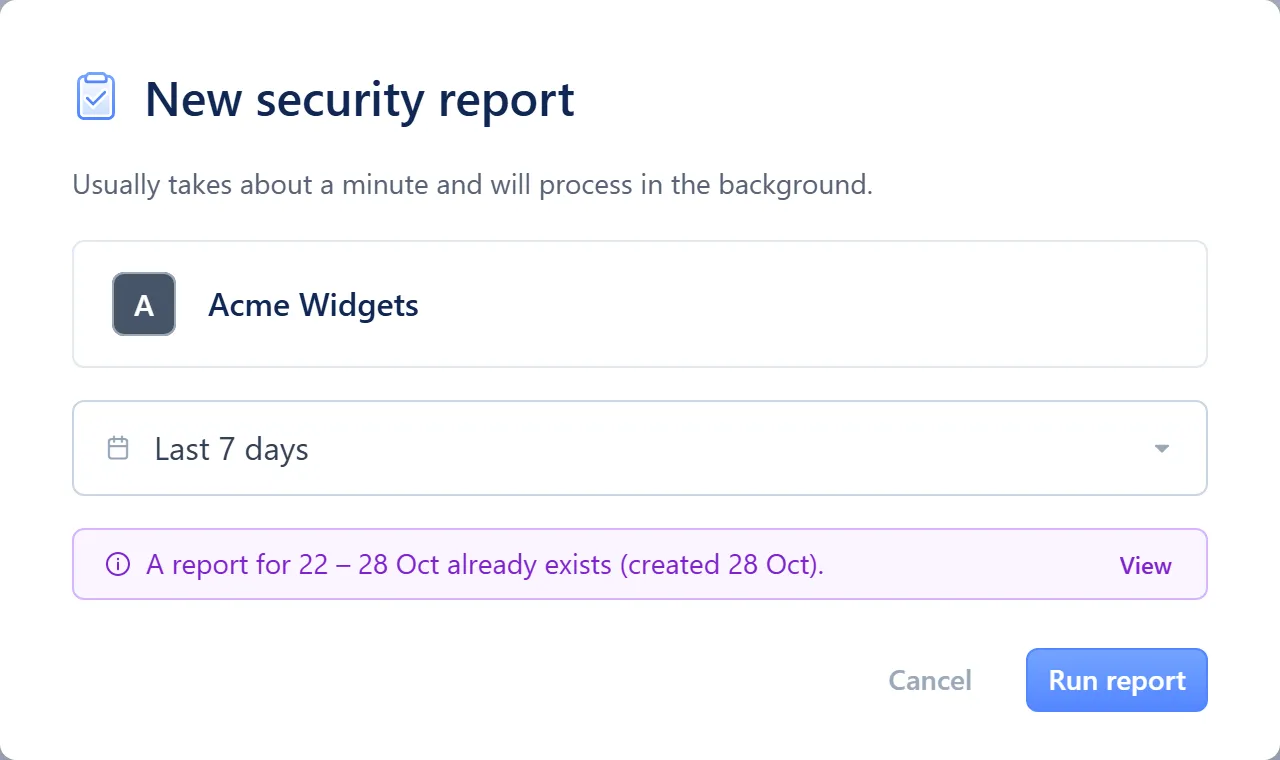
- Date range
- The note on the range, here with View
- Run report
A report can cover up to 12 months, ending today at the latest. One note appears under the range when something about it matters:
| Note | What it means |
|---|---|
| This tenant isn’t connected, so a report can’t be generated. | Run report stays off until the tenant is connected again. |
| The range can’t end after today. | Pick an end date of today or earlier. |
| No data for this range — this tenant was onboarded on (date). | The range ends before Octiga started managing the tenant. Pick a later range. |
| The range can’t be longer than 12 months. | Shorten the range. |
| Figures start from (date), when this tenant was onboarded. | The range starts before onboarding, so the report starts on the onboarding day instead. You can still run it. |
| A report for (dates) already exists (created (date)). | Select View to open that report instead, or run a new one. |
| Includes today, so it’s a partial day. | Today’s figures only go up to when the report runs. |
To close the dialog without running anything, select Cancel or press Esc. If you’ve already picked a range, Octiga asks Discard changes? first.
While it generates
Section titled “While it generates”A report usually takes about a minute. The dialog shows each stage as it happens: Gathering data, then Rendering the PDF, then Delivering when the report is being emailed (only after Retry & send). A report can’t be cancelled once it starts.
You don’t have to wait. Select Minimise (or press Esc) and the report carries on in a panel at the bottom right of the screen; expand the panel to reopen the dialog, or select Hide to put it away while the report keeps running.
When the report is ready:
- With the dialog open, it reads Security report ready and then opens the report.
- Minimised, the panel reads Security report ready with View report, wherever you are in Octiga. Nothing moves you away from the page you’re on.
If the report fails, the dialog (or the panel) reads Report failed, the stage that failed shows the reason, and Retry runs it again with the same dates. A report that still hasn’t finished after an hour is marked Failed.
Reading a report
Section titled “Reading a report”Select a Ready or Sent report, or View report on its menu, and the report opens full-screen over the list.
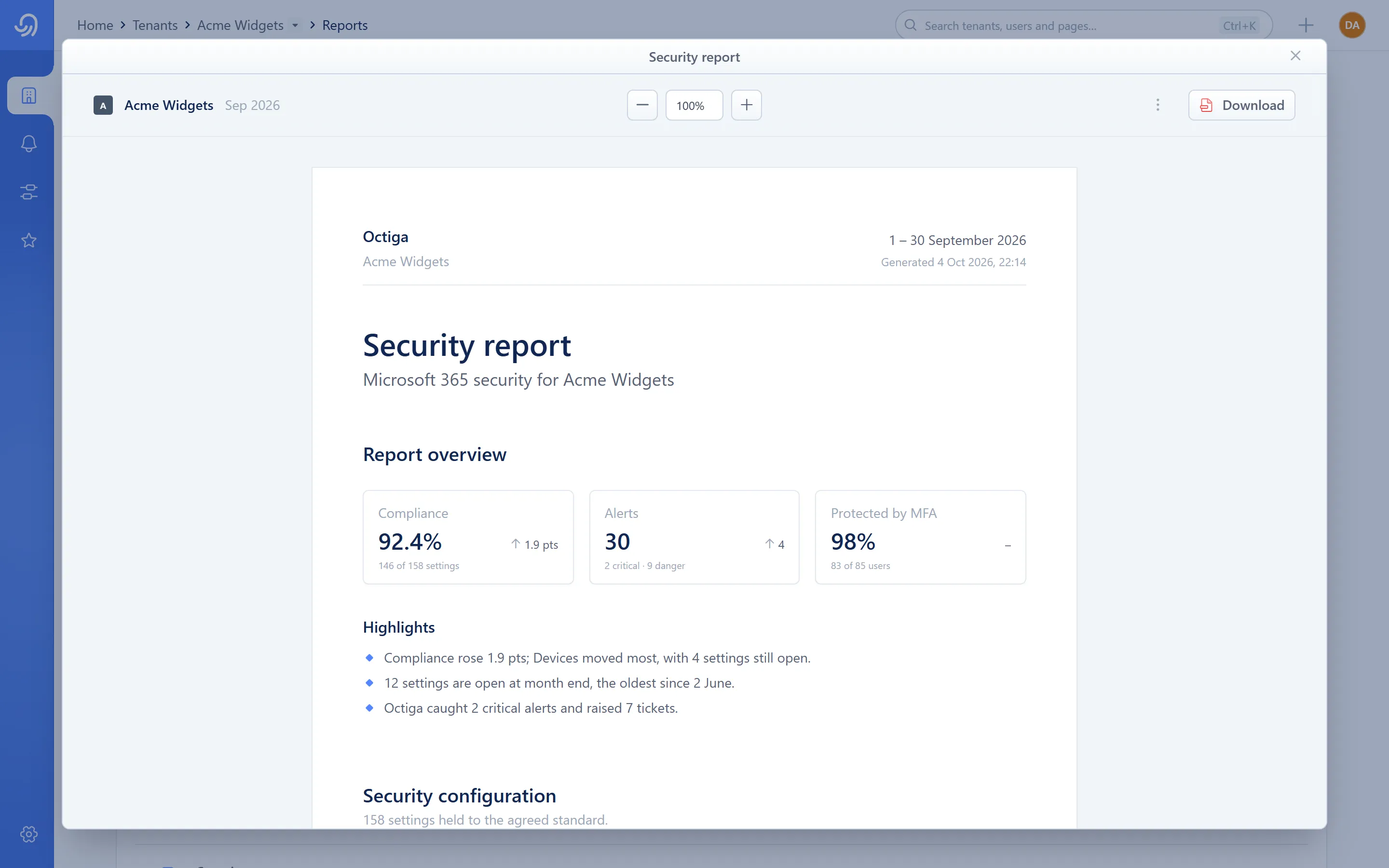
- The tenant and the period the report covers
- Zoom
- ⋮ menu — Copy link and Run again
- Download
- Close
The report starts with a Report overview of headline figures and highlights, then covers Security configuration, Threat monitoring and User accounts, and ends with How to read this report. It holds the same content as the PDF.
- Zoom — − and + step through 75%, 90%, 100%, 110%, 125% and 150%. To set any other zoom from 50% to 200%, type it in the field and press Enter, or use the up and down arrow keys to change it by 5%. Octiga remembers your last zoom in this browser.
- Copy link copies a link that opens this report directly. Whoever opens it signs in to Octiga and needs access to this tenant.
- Run again closes the report and starts a new one for the same dates.
- Download saves the PDF. When there’s no PDF to save (an expired report, for example), it’s disabled and hovering over it says why.
Close the report with ✕ or Esc to return to the list.
PDF file names
Section titled “PDF file names”A downloaded or emailed PDF is named after the period it covers and the tenant:
| Report | File name |
|---|---|
| Weekly (scheduled) | Octiga week 41 report - Acme Widgets.pdf, numbered by the ISO week the period starts in |
| Monthly (scheduled) | Octiga month 09 report - Acme Widgets.pdf |
| Run on demand | Octiga report 2026-09-01 to 2026-09-30 - Acme Widgets.pdf |
Emailed reports
Section titled “Emailed reports”Reports you run with New report are for download only. Scheduled reports are emailed to the schedule’s recipients when they’re generated, and show here as Sent. To set up a schedule or change who receives it, see Report schedules.
Each email comes from Octiga Reports on your behalf. Its subject is the report’s name (the file name without .pdf), the PDF is attached, and a short note at the foot names your company and tells the recipient they’re on that tenant’s report schedule.
If a scheduled report fails, nobody receives it. Retry & send on its menu runs it again and emails it to the same recipients.
How long reports are kept
Section titled “How long reports are kept”Each report’s PDF is kept for 30 days from when it was run. After that, the report moves to the Expired tab: it stays listed for the record, but you can’t open or download it. Download any report you want to keep for longer.